
Audit Trail
The Audit Trail is a tamper-evident record of every configuration change made to the OAS Engine — who made it, what they changed, when, and how they connected. It gives you a defensible history for compliance, troubleshooting, and change control.
Once enabled, the engine automatically logs changes no matter how they arrive: through the Configure application, the Web Configuration application, the REST API, the .NET Configuration API, or a remote engine over Live Data Cloud. There is nothing to wire up per-tag or per-screen — the logging happens centrally inside the engine.
At a glance
- Complete — captures config edits, adds/deletes, save/load, CSV import/export, logins, and engine start/stop.
- Attributed — every entry records the user, the source, and the client IP address.
- Before → After — edits show the old and new value for each field that changed.
- Tamper-evident — entries are cryptographically chained, so any later edit to the log is detectable.
- Self-managing — one file per day, automatically pruned after a retention period you set.
What gets recorded
When the Audit Trail is on, the engine records an entry for each of the following:
| Category | Examples |
|---|---|
| Configuration changes | Add / edit / delete of Tags, Drivers, Data Logging, Alarm Logging, Alarm Notification, Reports, Recipes, Data Routes, Security groups, Users, OPC A&E servers, Live Data Cloud servers, UDP Broadcast/Receive, and Options |
| Property edits | One entry per field that actually changed, shown as Before → After |
| Whole-file operations | Save Configuration, Load Configuration |
| Bulk data | CSV Import and CSV Export |
| Authentication | Successful and failed logins |
| Runtime tag writes | Values written to tags from Excel, an HMI, an OPC client, REST, or the .NET API (optional — off by default) |
| Engine lifecycle | Engine started, engine stopped, daily log rollover, and any integrity problem detected on startup |
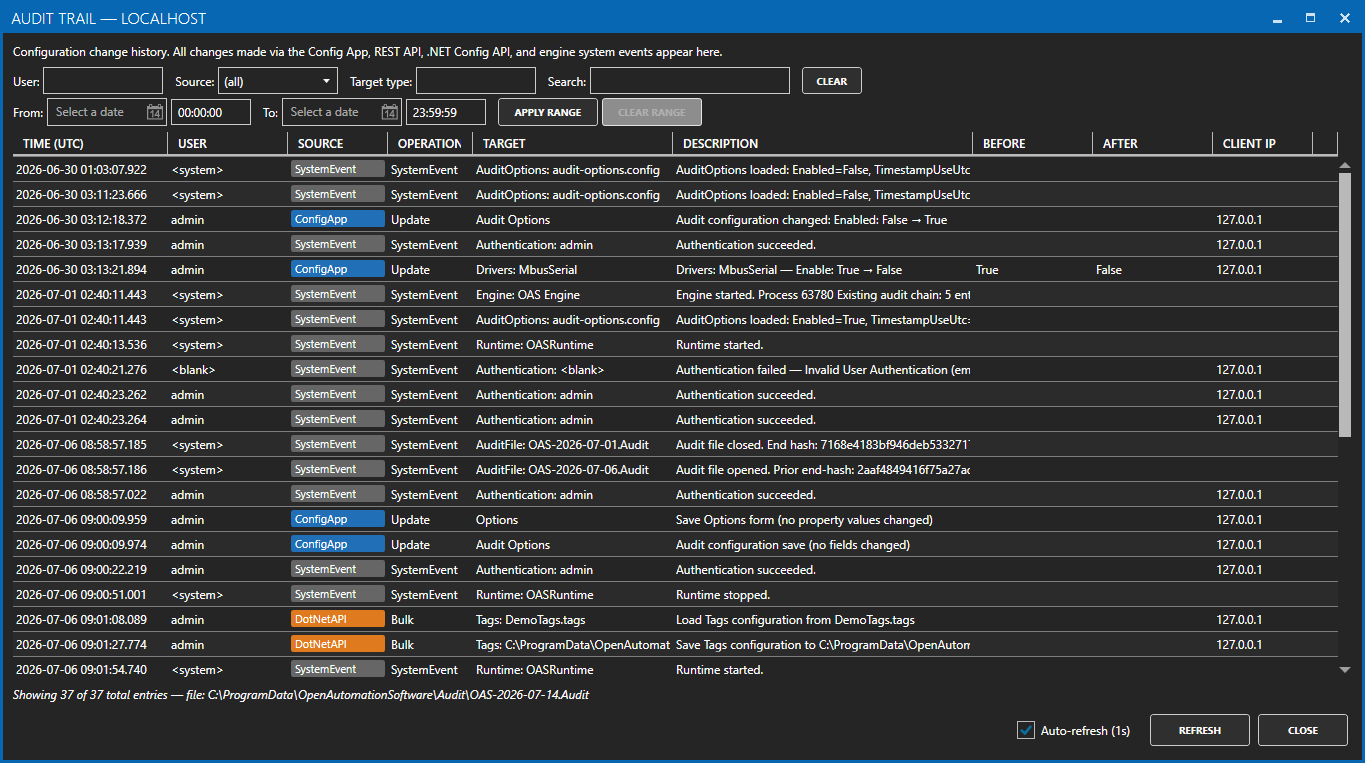
Each entry captures a consistent set of details:
- Timestamp (UTC or local time — your choice)
- User who made the change (
<system>for engine-generated events) - Source — how the change arrived: Configure app, Web Configuration app, REST, .NET API, Live Data Cloud, or a system event
- Operation — Add, Update, Delete, Bulk, Write, or System Event
- Target — the type and name of the object touched (e.g.
Tag/Pump1.Speed) - Description — a human-readable summary of the change
- Before / After values for edits
- Client IP and, for federated changes, the remote SCADA host that initiated them
Tamper evidence
The Audit Trail is append-only and every entry is linked to the one before it using a cryptographic hash — a "chain." If someone later edits, reorders, or deletes an entry directly in the file, the chain no longer computes, and the engine flags exactly where the break occurs.
There are two levels of protection:
- Standard (SHA-256): proves the log is internally consistent — casual tampering is caught.
- Keyed (HMAC-SHA-256): the engine generates a secret key (
audit-chain.key) protected by file-system permissions — an administrators-only ACL on Windows, or the owning account's permissions on Linux. With the key in place, entries can't be convincingly forged without it — providing genuine non-repudiation for compliance regimes (e.g. NIST 800-53 AU-10).
The chain is continuous across daily files, and the engine verifies it automatically at every startup. If it finds a break, a truncated file, or a missing day, it records that finding into the audit log itself.
Warning
The chain detects tampering with the log file; it does not encrypt it. An administrator with full file-system access could delete files outright. Standard file-system permissions on the log folder remain your first line of defense.
Where the data lives
Audit files are always stored alongside the engine's configuration files, in a sibling Audit folder. The exact location depends on the operating system:
| Platform | Audit folder |
|---|---|
| Windows | %ProgramData%\OpenAutomationSoftware\Audit\ (next to the ConfigFiles folder) |
| Linux | <engine install directory>/Audit/ (next to the ConfigFiles folder) |
On Windows the location is a fixed system path. On Linux it is relative to wherever the engine is deployed — for example, if the engine runs from /opt/oas/, the audit data is at /opt/oas/Audit/. It is not a distro-standard path.
The folder contains one file per day plus the integrity key:
Audit/
    OAS-2026-07-14.Audit      ← one file per day
    OAS-2026-07-13.Audit
    audit-chain.key           ← secret key for tamper protection
- Daily rollover — a new file is opened each day, so files stay a manageable size.
- Retention — files older than the retention period are deleted automatically. The default is 365 days; set it to 0 to keep files indefinitely.
- Files can be read while the engine is running and actively writing.
Protect the audit folder
The integrity key is only as safe as the folder it sits in. On Windows the folder carries an administrators-only permission by default. On Linux, make sure the engine's directory is owned by the service account and not world-readable, so the key and log files can't be read or replaced by other users.
Configuring the Audit Trail
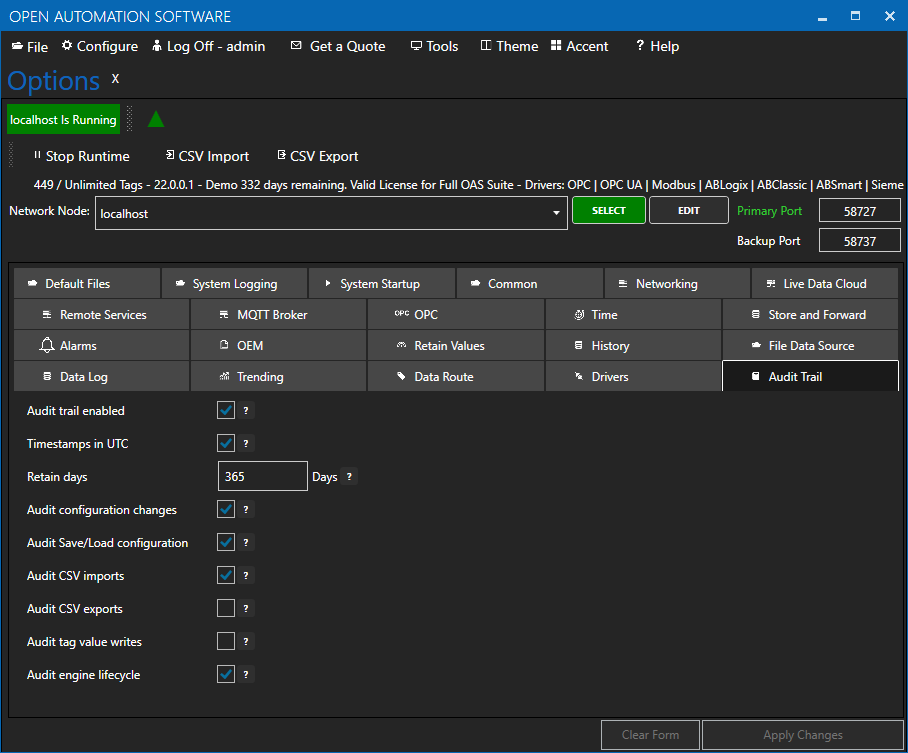
The Audit Trail is off by default — you opt in so a fresh install doesn't start writing logs until you're ready. Settings are stored with the rest of the engine Options.
| Setting | Default | Purpose |
|---|---|---|
| Enabled | Off | Master switch for the whole feature |
| Timestamps in UTC | On | Record times in UTC (recommended) or engine-local time |
| Retention (days) | 365 | How long to keep daily files (0 = forever) |
| Audit Config changes | On | Add/edit/delete of configuration items |
| Audit Save / Load | On | Whole-configuration save and load |
| Audit CSV Import | On | Bulk import operations |
| Audit CSV Export | Off | Bulk export operations |
| Audit Tag Value Writes | Off | Runtime value writes (can be high volume) |
| Audit Engine Lifecycle | On | Start/stop and rollover events |
Tips
Changes to the audit settings are always logged, even when they turn the feature off — so the record always shows who disabled auditing and when. It can't be silently switched off.
Audit Trail options in Configure OAS
You can configure the Audit Trail options in the Configure OAS application.
Select Options in the sidebar
Expand the Audit Trail section
Viewing the Audit Trail
In the Configuration application — select Audit Trail in the sidebar. The viewer shows the log with columns for time, user, source, operation, target, detail and client IP, along with the audit file it is reading and whether the integrity chain is intact. You can filter to a date/time window.
Over the REST API — for integration with your own tools:
GET /OASREST/v2/audittrail?max=&fromUtc=&toUtc=— returns entries as JSON, including any detected chain breaksGET /OASREST/v2/audittrailoptions— read the current audit settingsPUT /OASREST/v2/audittrailoptions— update the settings
Filtering the Audit Trail
You can filter the audit trail list by using the fields at the top of the screen.

Security and access control
- Permissions — viewing the Audit Trail requires the read permission on the Options section in Configure Security; changing audit settings requires the corresponding write permission.
- Sensitive values are redacted — passwords, license keys, and tokens are never written to the log. The entry records that a credential changed, shown as
<redacted>, but never the value itself. - Accurate attribution — the engine records the true origin of each change even through layered access paths, so a change made via REST is never mislabeled as a local edit.
Reliability
Logging runs on a background writer so it never slows down the operation that triggered it — even a large CSV import or a full project restore. Durability is comparable to the Windows Event Log: a graceful engine shutdown flushes everything, and a hard crash (power loss) loses at most about a second of buffered entries, leaving the file as a valid, verifiable prefix. The Audit Trail is designed so that it can never destabilize the engine itself.