
How to Configure MCP Client: Claude
How to Configure MCP Clients like Claude Desktop using the MCP Bridge
Claude Desktop is a powerful AI client that can connect and communicate with the OAS server, which can use either the MCP Bridge configuration or the HTTP channel, however using the HTTP channel would require that you expose your OAS Server on the internet with a URL. These instructions cover using the MCP Bridge application which will still work with an OAS Server behind your corporate network.
Warning
While the following method below uses the MCP Bridge application to keep your OAS Server off a public network, using Claude in any form will send your data up to the Claude cloud infrastructure for processing. How this data is used is based on your Claude account. With an Enterprise Claude account, you can prevent Anthropic from retaining and using your data for training.
Install the Claude Desktop application on your local machine. This can be found at Claude Desktop. You will need to create an account with Claude.ai before you can use the desktop application.
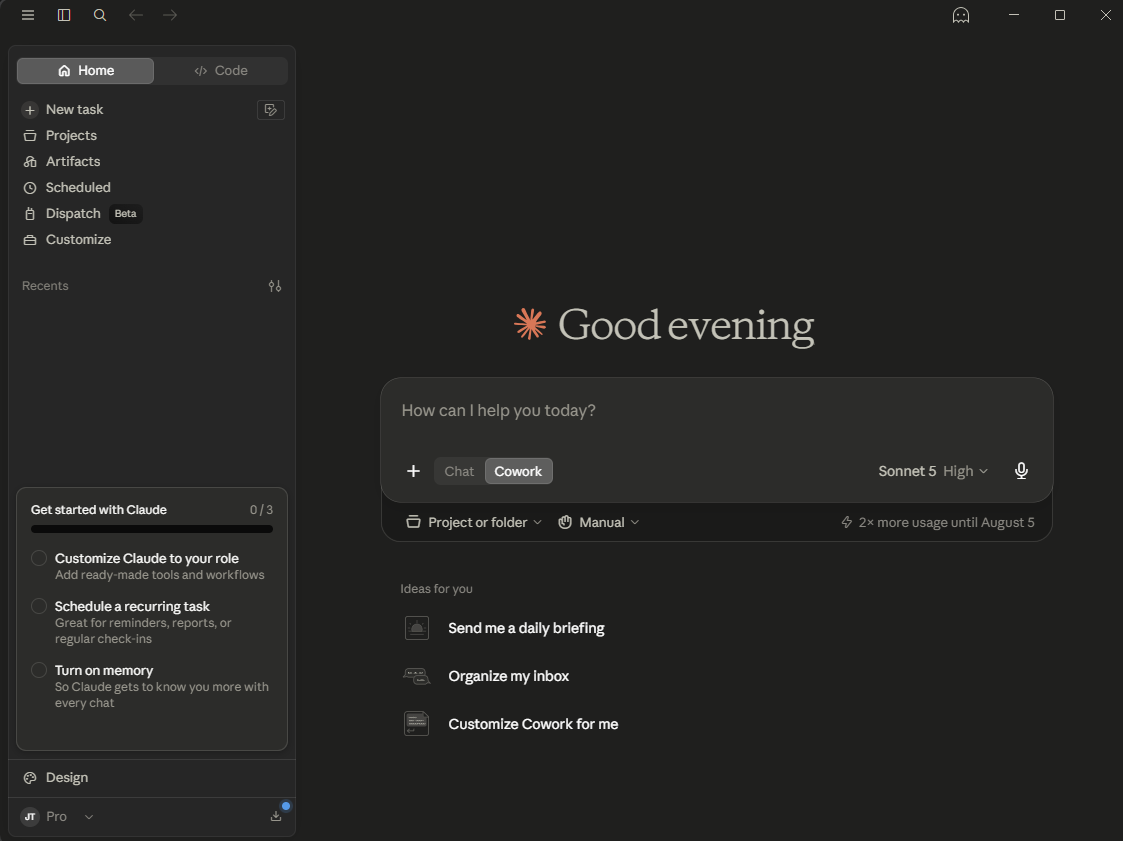
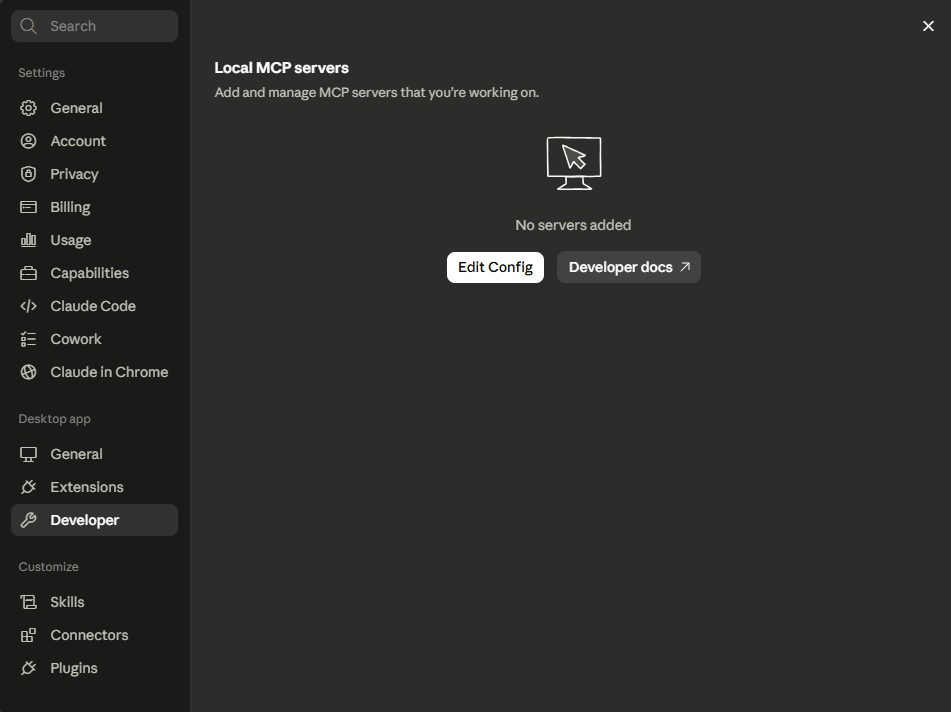
Run the desktop app and from the user menu (lower left), select
Developerand thenEdit Config, which will point to theclaude_desktop_config.jsonfile.
- Edit the config file, locating the
mcpServerssection, adding the following entry:
"oas-engine": {
    "command": "C:\\Program Files\\Open Automation Software\\OAS\\MCP\\win\\oas-mcp-bridge.exe",
    "args": [
    "--host", "localhost",
    "--port", "58730",
    "--apikey", "<YOUR_API_KEY>"
    ]
}
- Replace
localhostwith the IP address of your OAS server. If you are running the OAS Server on the same machine as your client, you can keep this aslocalhost. - Change the
portnumber to math the port configured above. If this was not changed, keep the default. - Replace
<YOUR_API_KEY>with the MCP API Key assigned to the user you created above.
Note
The command field above points to the default installation of the OAS server, which includes the MCP Bridge. This executable should be copied to the client machine where you are running Claude Desktop, and then you can update the path to where it resides on the client. If your client is running Linux, a linux version is also included in the OAS installation MCP directory.
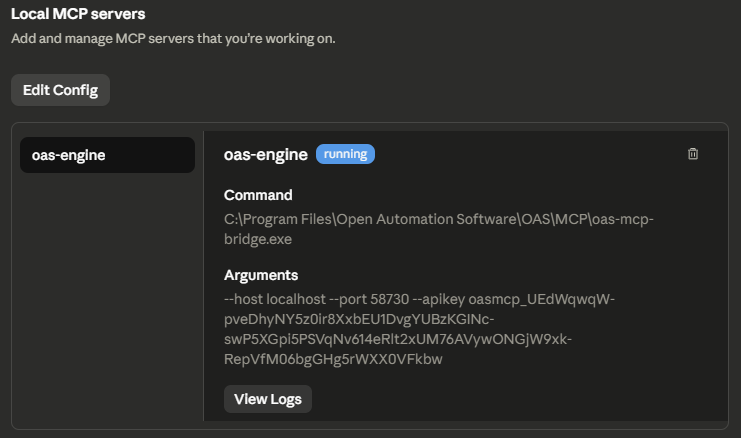
- Quit and restart the Claude Desktop application after saving the config file. Make sure you quit entirely. On Windows, this would require opening the system tray and quitting Claude within there as well. Unfortunately, this is required for the configuration change to take effect. After reopening the application, go back to the Developer settings and you should see something like the following, showing the OAS MCP server connection.
- Return to the Claude chat and test the interface by performing some queries. A good simple test would be:
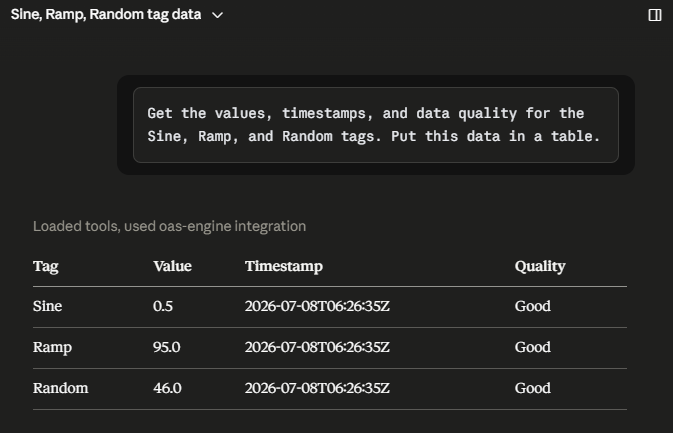
Get the values, timestamps, and data quality for the Sine, Ramp, and Random tags. Put this data in a table.
You should see something like this as a result:
Ready to get started?
See how OAS fits your environment, or get pricing for your project.