
How to Configure MCP for LLM Integration
What is MCP?
The Model Context Protocol (MCP) is an open standard that lets AI models securely connect to external tools, data sources, and services through a common interface. Instead of requiring custom integrations for every application, MCP provides a standardized way for AI clients to discover available capabilities, exchange context, and invoke actions, making it easier to build interoperable AI systems.
The OAS MCP service exposes common, read-only operations for analyzing live and historical data within an OAS server. The AI client can load data and synthesize it into just-in-time insights on your installation. Current MCP tools include:
- Browsing and enumerating Tags
- Reading live Tag properties
- Reading live Tag values
- Reading live Alam data
- Reading live Trend data
- Reading current system status
Note
The OAS MCP interface is currently a technology preview. While available for use in your installations, the list of available operations will be expanded and modified in the future. A valid license for the MCP feature, or a demo license is required to use MCP
1 - Configure MCP Options
The MCP service uses two different ports in order to support different clients connecting to the OAS server. This allows a wide variety of clients to access the MCP tools, such as Claude Desktop, AnythingLLM, and more.
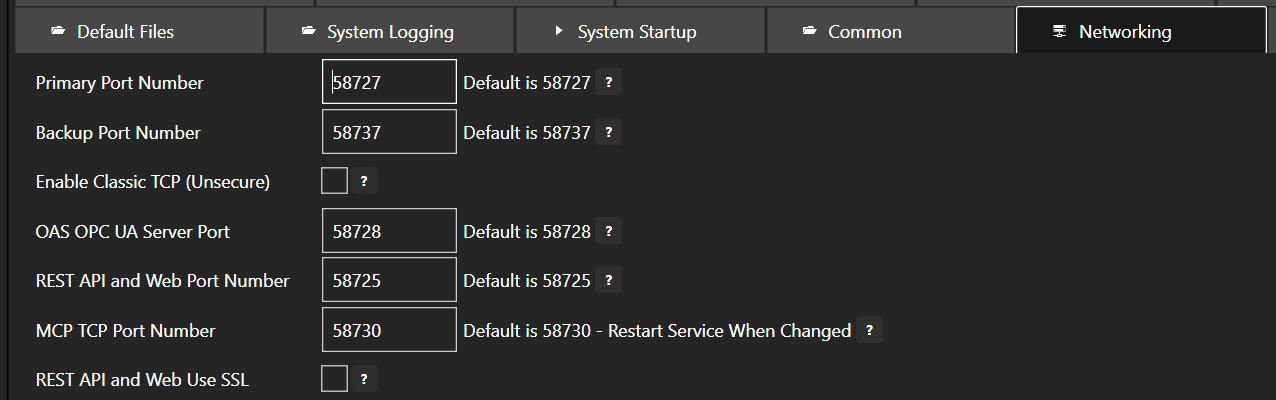
In the OAS configuration application, select Options in the sidebar, expand the Networking section, and locate the REST API and Web Port Number and MCP TCP Port Number fields.
HTTP Streaming
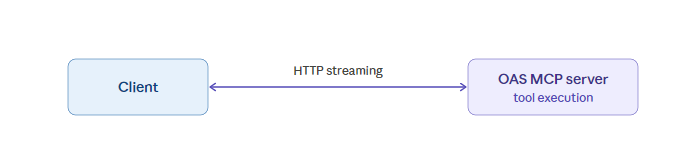
The HTTP endpoint for MCP uses the same port as the OAS REST API (default 58725) and can be configured to any available port on your server. This connection method allows for a direct connection between the client and server.
TCP
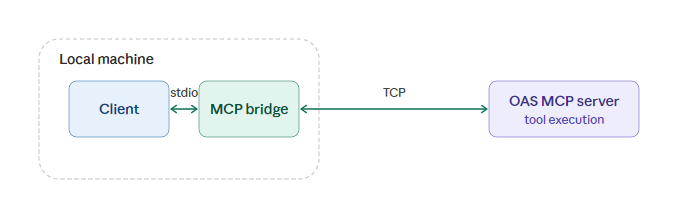
The MCP TCP Port is separately configured if you are using the OAS MCP bridge application, which utilizes stdio for interfacing with your client, and TCP to communicate directly with your OAS server installation.
Tips
To prevent network level interruptions in communications, be sure to open the selected HTTP and/or TCP ports on both your OAS server, as well as the client machine.
2 - Configure MCP Security
Access to OAS data is predicated on a security credential, along with explicit access to MCP tools. Configuration of Security Groups and Users is performed within the OAS configuration application.
Create a Security Group for your MCP clients by selecting Security in the sidebar, clicking + Add, entering a Name such as "MCP Clients", and clicking Create. Once created, the group is selected and its Group Name is shown in the form.
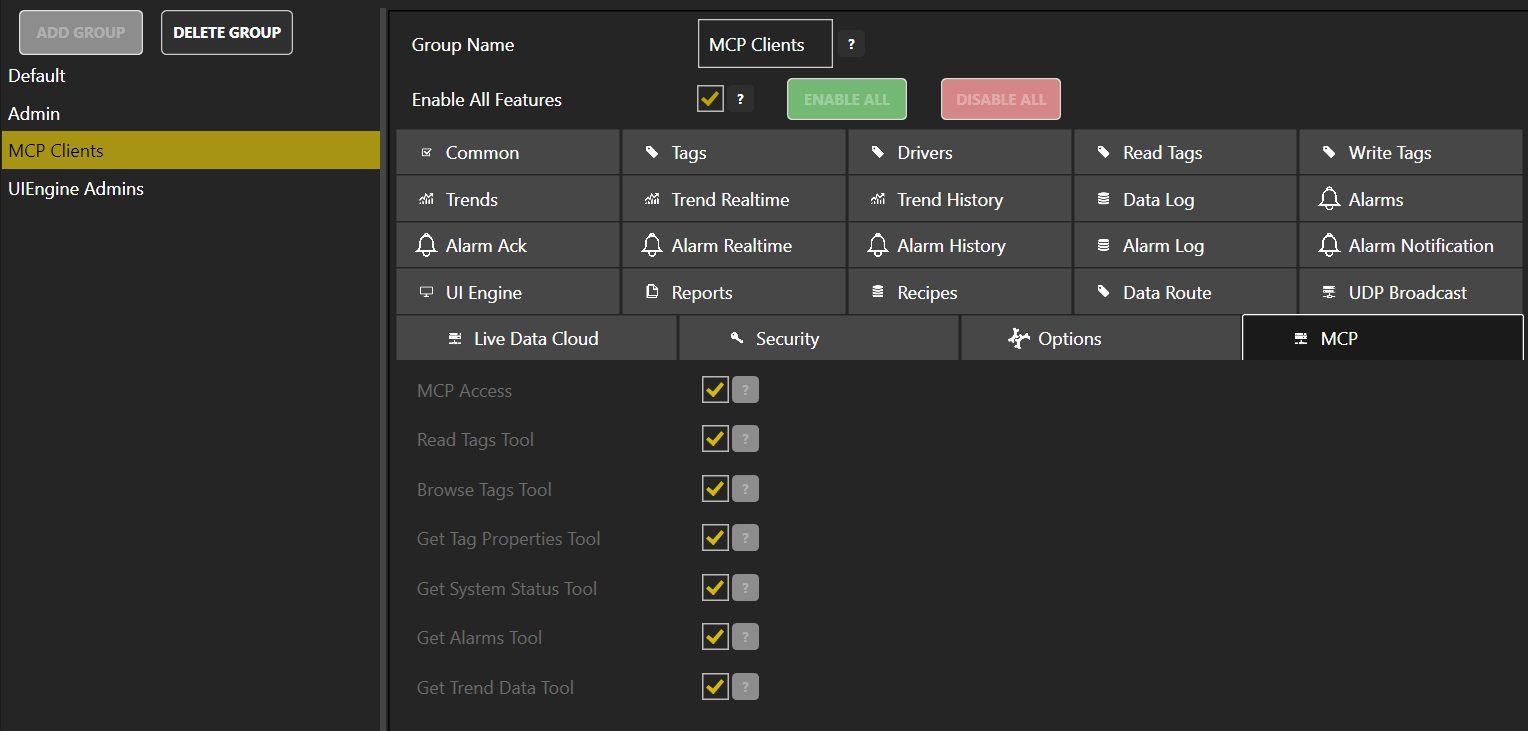
By default, Enable All Features is turned on for the Security Group, which also enables all MCP tools. If you would like to restrict access to any tools or disable MCP access entirely for a Security Group, turn off Enable All Features, expand the MCP section at the bottom of the property list, enable or disable the individual tools for the group, and click Apply changes.
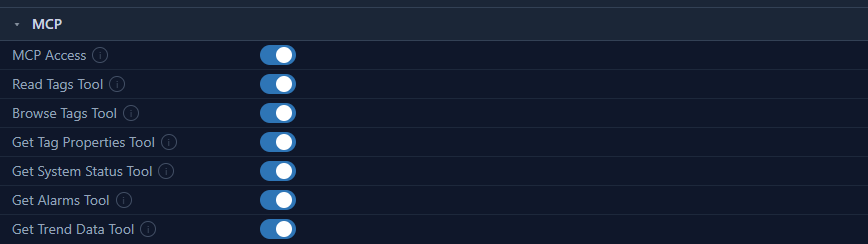
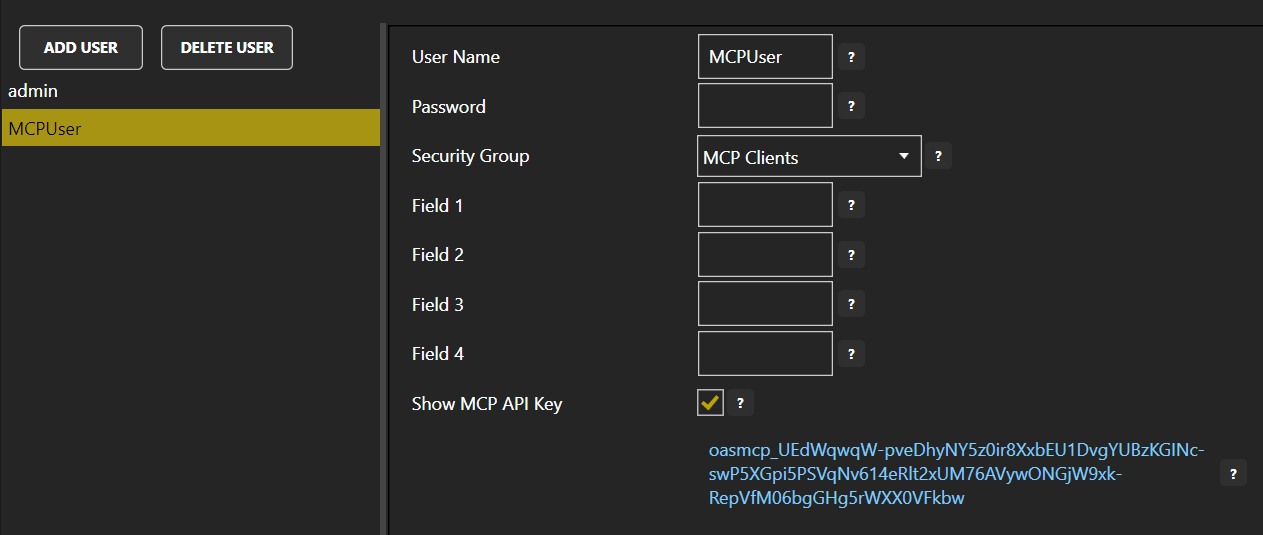
Create a User for your MCP clients by selecting Users in the sidebar and clicking + Add. Fill in the User name field with something like "MCPUser", set a Password, select the newly created "MCP Clients" for the Security group, and click Create.
After the user is created, turn on Show MCP API Key to display the unique key for this user and copy the text. This will be the key used within the connection configuration for your MCP client.
3 - Next Steps: Configure MCP Client
There are two options for communications between your MCP client and the OAS MCP server, and these depend entirely on the tool you choose. The OAS Server supports both communications channels:
- MCP Bridge: using a thin bridge application that uses
stdiofor input and output, then speaks TCP directly to the OAS Server (e.g. Claude Desktop)
Learn how to configure a client using the MCP Bridge: Claude Desktop
- HTTP: using the streaming HTTP protocol, your MCP client can connect directly to the OAS Server (e.g. AnythingLLM). These are typically self-contained clients with self-hosted LLMs
Learn how to configure a client using HTTP: AnythingLLM
Ready to get started?
See how OAS fits your environment, or get pricing for your project.