
How to Update OAS using Configure OAS
The instructions in this guide allow you to upgrade an existing local or remote OAS installation running in Windows or Linux using the OAS Web Configuration Application.
If running OAS in Linux, it is assumed that OAS was originally installed using the How to Install OAS in Linux guide.
You will need a browser with access to the Web Configuration Application. This can be on the same machine where the OAS Engine is running or a different machine as long as the OAS Engine instance is accessible over the network.
OAS does not provide technical support for Linux operating system issues and user management. You can find a list of operating systems where the OAS Engine has been tested on the OAS System Requirements page.
If you prefer to update a Linux installation manually you can follow the How to Manually Update OAS in Linux guide.
1 - License Screen
In this section you will open the Web Configuration Application, connect to a local or remote OAS instance and start the update process from the License screen.
You should have the Web Configuration Application available either on the same machine as the OAS Engine installation or on different machine that is on the same network as the OAS Engine.
Important
You can update OAS as long as you are running a valid license (including demo) and the maintenance period has not expired. If your maintenance has expired please contact OAS on support@oasiot.com.
Open your browser to the Web Configuration Application at
http://<your server>:58725/app/configand log in.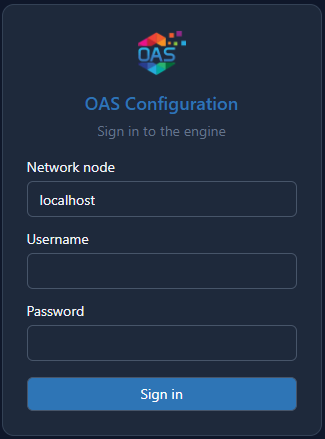
Specify the Node by providing the IP or hostname of the local or remote OAS Engine. You can use localhost if running on the local machine.
Select License in the sidebar.
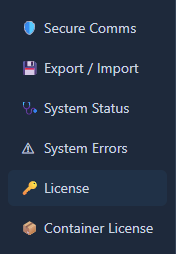
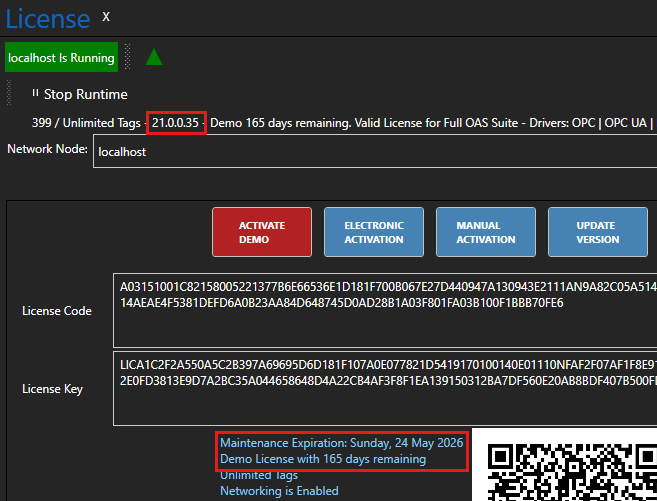
You will see your license details, your maintenance expiry date and the current version of your application on this screen.
2 - Update Version
Warning
During the update process the OAS Engine will be stopped and data processing will also stop.
Warning
Ensure that you have saved all of your configuration changes on the OAS Engine to be updated.
This means if you have any open Web Configuration Application screens and you haven't saved your changes, you should do so now.
When you are ready to start updating the OAS Engine click on the Update Version button.
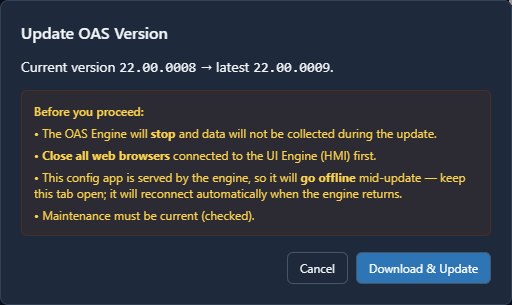
The dialog shows the current version, the latest available version and a number of warnings. Please read them carefully.
Click on Download & Update. The update will be downloaded and installed.
The OAS Engine will stop and perform the update. The Web Configuration Application is served by the OAS Engine, so it will go offline during the update. Keep the browser tab open and it will reconnect automatically when the engine returns.
Wait until the update is complete and the OAS Engine returns to being active.
3 - Verify OAS Engine service version
You can now open the Web Configuration Application on a local or remote machine and connect to the OAS instance you just updated.
Once connected you should see the version updated in the toolbar or in the System Status screen.
Windows Example:
Windows OAS Engine
Processor Type: x64
Service Version: 21.0.0.49
Service Interface Version: 315
Linux Example:
Linux OAS Engine
Processor Type: x64
Service Version: 21.0.0.45
Service Interface Version: 315
Ready to get started?
See how OAS fits your environment, or get pricing for your project.