
Getting Started with BACnet
This page takes a BACnet/IP network from nothing to OAS tags reading a device's objects, and then to Change of Value and writes. It uses a controller on the same IP subnet as the OAS engine; a device on another subnet needs the BBMD step as well.
Info
BACnet is a licensed option, on OAS 22.4.0.0 or later. Open Configure OAS and check that BACnet appears in the licensed drivers list. Without it, every BACnet tag reads bad quality and System Errors reports License - 001.
Before you start
Important
192.168.1.20 (the OAS engine) and the device instance 1001 are placeholders for this page. Use your own engine's IPv4 address on the BACnet network, and the device instance of your own device.
- The device must be reachable from the engine over BACnet/IP, on UDP port 47808 unless the network uses another. Allow inbound UDP on that port in the engine's firewall.
- Note the engine's IPv4 address on the BACnet network. On a computer with more than one IPv4 interface, the driver needs it.
- If the device is on another IP subnet, note the address of the network's BBMD, usually the BACnet router or building controller that acts as one.
Configure the BACnet driver
In the following steps you will create and configure a BACnet driver interface bound to the BACnet network.
Select Drivers in the sidebar.
Click + Add, enter a meaningful Name for this driver interface instance (for example BACnet_Building), and click Create. Once created, the driver interface name should appear in the list of drivers.
Ensure the following parameters are configured:
- Driver: BACnet
- Local IP Address: 192.168.1.20
- Local UDP Port: 47808
On a computer with a single IPv4 interface, Local IP Address can be left empty to bind all interfaces. With several - Hyper-V, WSL, Docker and VPN adapters count - it must be set, or the endpoint cannot open. Each field is listed under Network.
Leave the rest of the BACnet settings at their defaults. See Discovery and reads.
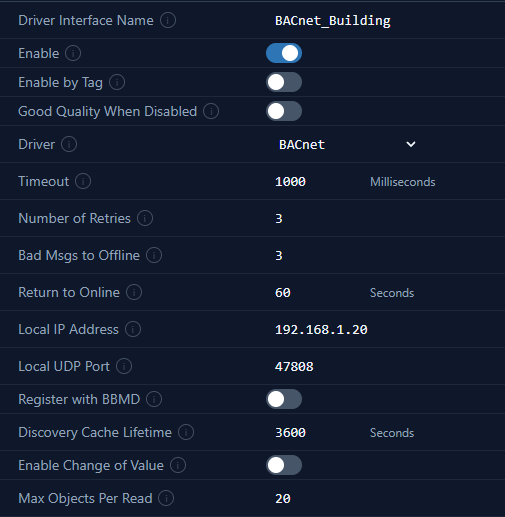
Turn on Enable and click on the Apply changes button. The driver interface must be applied, enabled and running before its network can be browsed.
Select System Errors in the sidebar and check that nothing is listed under BACnet for the new driver interface.
Configuration - 002means the endpoint could not open; see Troubleshooting.
Reach another subnet
Skip this step if the device is on the engine's own subnet.
In the Drivers screen, select the BACnet_Building driver interface and turn on Register with BBMD.
Set BBMD Address to the BBMD's address, with
:portwhen it is not 47808 (for example 10.20.0.5:47808).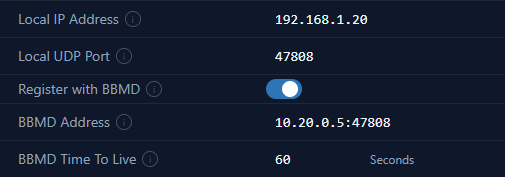
Click on the Apply changes button. The driver registers with the BBMD as a foreign device and sends its WhoIs through it as well. See BBMD.
Import objects as tags
Import BACnet Objects discovers the devices on the network and adds a tag for each object you check.
Select Tags in the sidebar, click One Click Import and then Import BACnet Objects. The One Click Import window opens.
Set BACnet Driver to BACnet_Building. The driver sends a WhoIs and lists the devices that answer. Click Discover again to send another WhoIs and listen for 6 seconds.
If the list stays empty, the window reports that no devices answered WhoIs. Check that the driver interface is enabled, that Local IP Address is on the BACnet network, and that the device is reachable.
Expand the device with instance 1001 and check the objects to import, or click Select all. The count of selected objects is shown above the list, and the suggested data type beside each object. Objects of a type the driver does not read are listed greyed out as not supported.
Choose where the tags go, under Add to folder, or enter a New group (for example AHU_1). Leave Data type at Suggested per object and Poll rate (s) at 1.
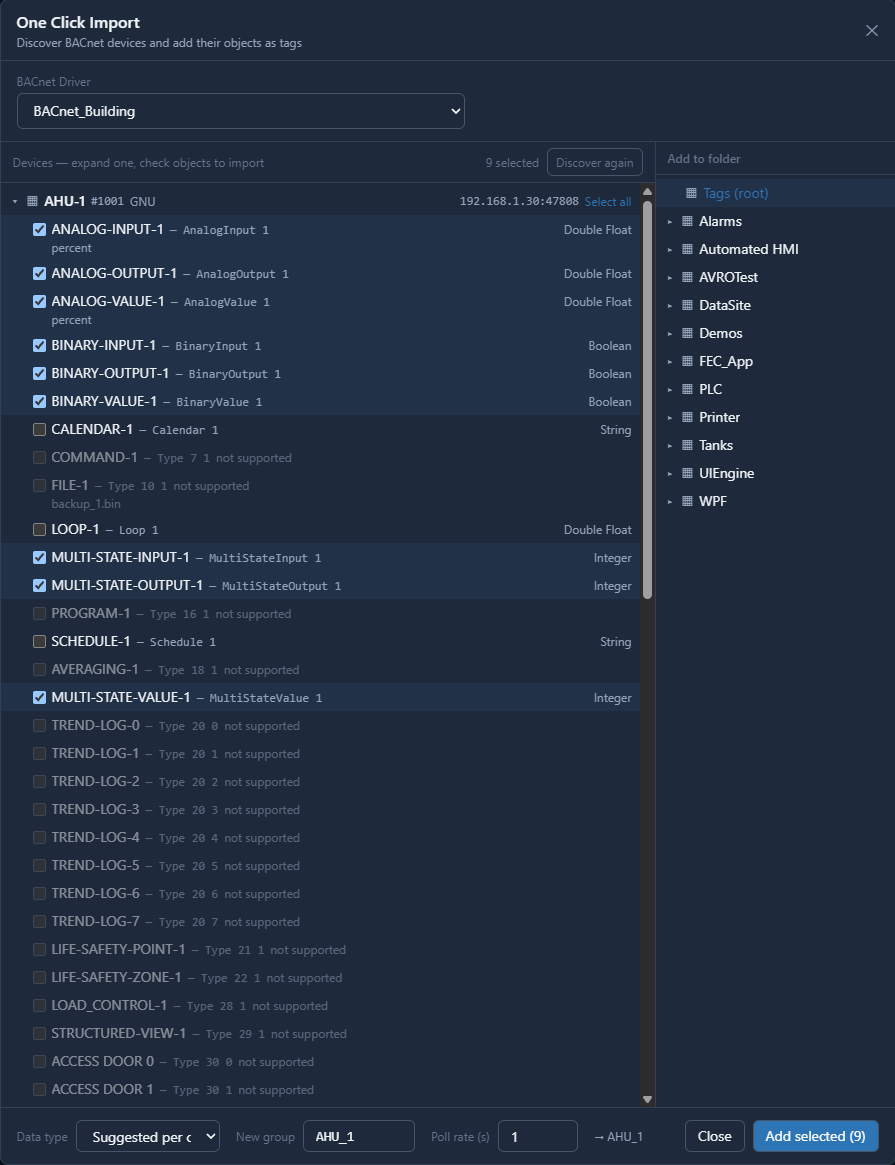
Click Add selected (N), where N is the number of objects checked. Each object becomes a tag reading its Present Value, and the window reports how many tags it added. Click on Close.
The suggested Data Type is Double Float for analog and loop objects, Boolean for binary objects, Integer for multi-state, integer and accumulator objects, and String for the rest. See Import BACnet Objects.
Check the tag values
Open the group the tags were added to and select one of the new tags.
Check that its quality is Good and its value follows the object on the device. The import has set:
- Data Source: BACnet
- Select Driver Interface: BACnet_Building
- Device Instance: 1001
- Object Type and Object Instance: the object checked
- Property: PresentValue
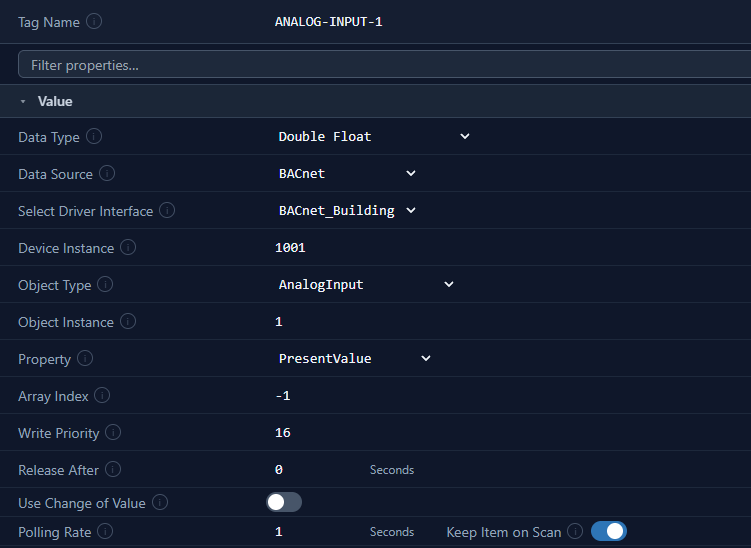
To read another property of the same object, such as its name, set Property to ObjectName and Data Type to String, and click on the Apply changes button. Text properties and whole arrays need a String tag. Each tag property is listed under Tag properties.
Add a tag by hand
A tag can also be pointed at an object directly, one tag at a time.
Select the tag in the Tags screen.
Set Data Source to BACnet and Select Driver Interface to BACnet_Building.
Click Browse… beside Object Instance. The Browse BACnet objects window lists the devices that answer WhoIs. Expand the device with instance 1001, select an object, and click Use selected. Device Instance, Object Type and Object Instance are filled in.
When the numbers are known, they can be typed instead:
- Device Instance: 1001
- Object Type: AnalogInput
- Object Instance: 1
Leave Property at PresentValue.
Click on the Apply changes button and check that the tag's quality is Good.
Use Change of Value
With Change of Value the device sends a tag's value when it changes, instead of the driver polling it.
In the Drivers screen, select the BACnet_Building driver interface, turn on Enable Change of Value and click on the Apply changes button.
In the Tags screen, select a tag reading a Present Value, turn on Use Change of Value and click on the Apply changes button.
Both settings are needed. Notifications carry only the Present Value and Status Flags, so tags reading other properties are still polled at their Polling Rate, and an object whose device rejects the subscription is polled as well. See Change of Value.
Write to an object
A write to a BACnet tag goes to its property on the device. On a commandable object, such as an analog output or a binary output, it goes in at the tag's Write Priority: 1 is the highest and 16, the default, the lowest. The object follows the highest-priority slot that holds a value, so a write at 16 has no effect while anything holds a higher priority.
To hand the object back after a write, set Release After to a number of seconds: the driver then releases its priority by writing Null. At 0 the value stays until the next write. See Writes.
Save the configuration
Apply changes updates the running configuration; it does not write it to disk. Click Save to write the tag configuration file, and set it as the default under Options so that it loads again when the service restarts.
Where next
- Config Reference - every parameter on the driver and on a BACnet tag.
- BACnet Driver - discovery, polling, Change of Value and writes.