
Getting Started with MQTT
This page takes an MQTT broker connection from nothing to a working subscriber and a working publisher. It uses the public HiveMQ broker so that there is no broker to install; a broker of your own differs only in its IP Address, Port and credentials.
Info
MQTT is a licensed option. Open Configure OAS and check that MQTT appears in the licensed drivers list. OAS 8.26 or later is required.
Configure MQTT Data Source
In the following steps you will create and configure a MQTT Connector to connect to a third party broker so that tags will be able to subscribe to a topic. For the purposes of this guide, you will connect to the public HiveMQ broker.
Select Drivers in the sidebar.
Click + Add, enter a meaningful Driver Interface Name to give this driver interface instance a unique name (for example MQTT Data Source), and click Create. Once created, the driver interface name should appear in the list of drivers.
Ensure the following parameters are configured:
- Driver: MQTT
- IP Address: broker.hivemq.com
- Port: 1883
- Client ID: OAS_Client_123
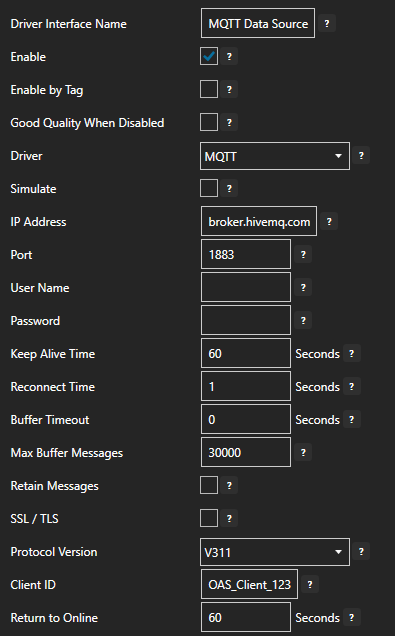
The app flags the empty User Name and Password fields. The public HiveMQ broker accepts anonymous connections, so leave them blank here. Fill them in if the broker you are connecting to requires authentication.
Tips
If you are having trouble reading a value in later steps, try to change the Client ID to something else as each client ID connecting to the broker must be unique.
Turn on Enable and click on the Apply changes button. The driver interface is not active until it is enabled and the changes are applied.
Assign MQTT as Tag Data Source
You will now set the Tag's data source to the MQTT driver interface that you created previously.
At the end of this section you will need to use a tool like MQTT Explorer to publish a value to your Tag.
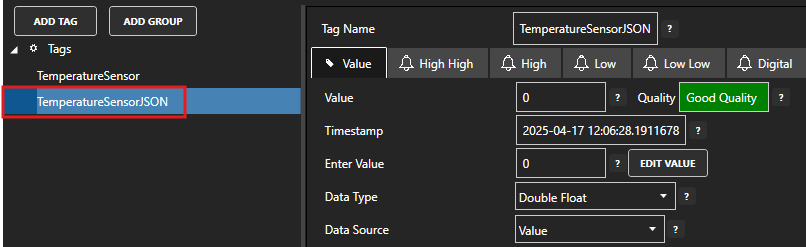
Select the Tag that will source data from the MQTT data source.
Set the following properties:
- Data Type: JSON
- Data Source: MQTT
- Select Driver Interface: MQTT Data Source
- Topic: oas/temperature
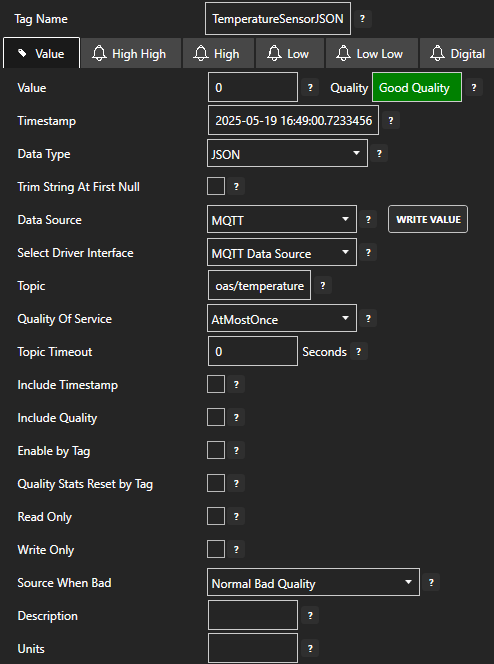
Click on the Apply changes button to apply the changes.
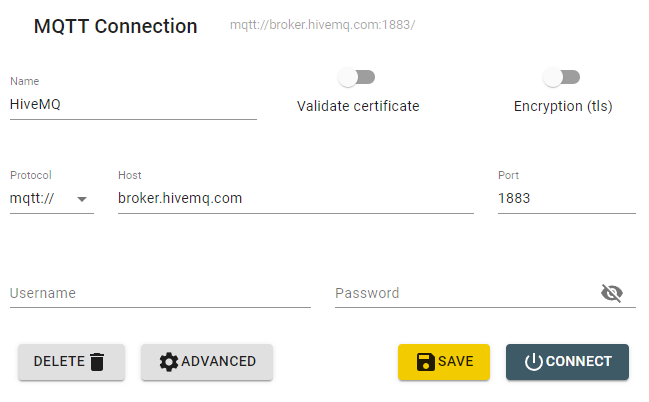
Using an MQTT testing tool to publish messages, such as MQTT Explorer, publish a JSON message to the oas/temperature topic.
{
    "temperature": 24.9
}
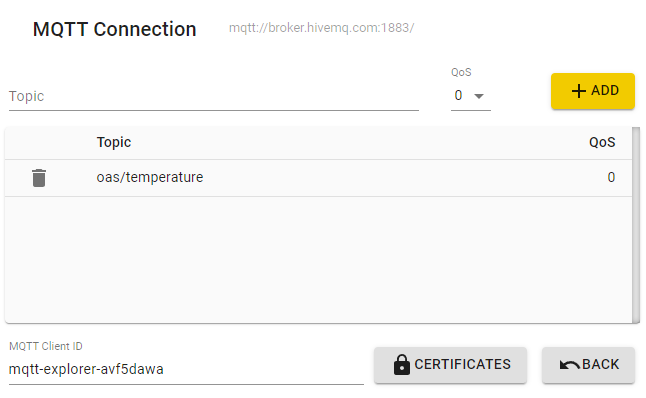
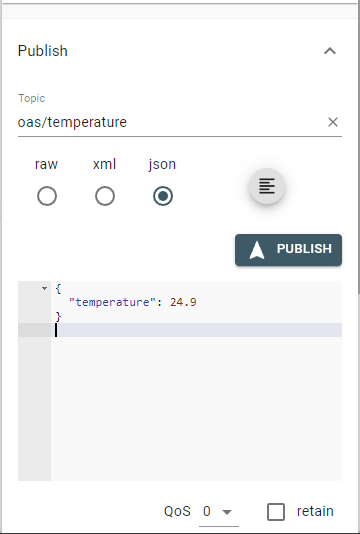
Check that the quality status is Good and you can see the JSON value.

Configure MQTT Publishing
In the following steps you will create and configure a second MQTT Connector to connect and publish tags to a third party broker. For the purposes of this guide, you will connect to the same public HiveMQ broker.
Warning
Do not publish sensitive information to a public broker.
Select Drivers in the sidebar.
Click + Add, enter a meaningful Driver Interface Name to give this driver interface instance a unique name (for example MQTT Publisher), and click Create. Once created, the driver interface name should appear in the list of drivers.
Ensure the following parameters are configured:
- Driver: MQTT
- IP Address: broker.hivemq.com
- Port: 1883
- Client ID: OAS_Publisher
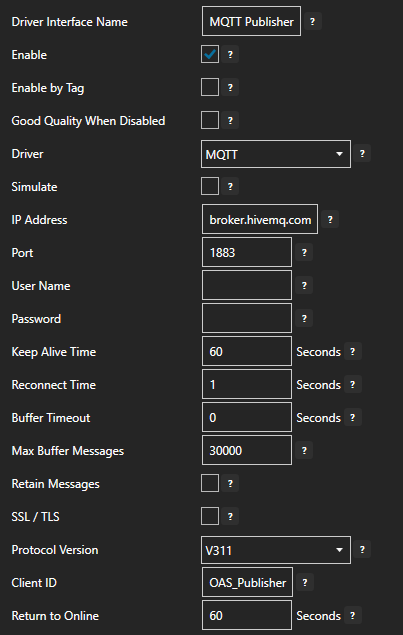
The app flags the empty User Name and Password fields. The public HiveMQ broker accepts anonymous connections, so leave them blank here. Fill them in if the broker you are connecting to requires authentication.
Turn on Enable and click on the Apply changes button. The driver interface is not active until it is enabled and the changes are applied.
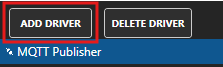
Publish Selected Tags in MQTT
In this step you will select the Tags that you want to publish to the MQTT broker.
In the Drivers screen, select the MQTT driver instance that you created in the previous section (for example MQTT Publisher).
Make sure the Publish Selected Tags toggle is turned on.

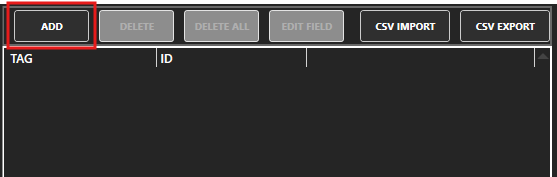
In the Tags To Publish table click on the Add button.
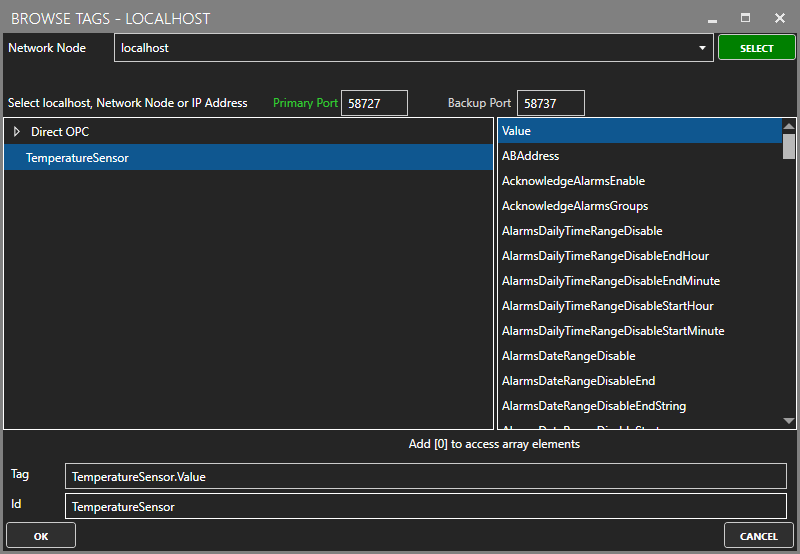
The Publish tag window will appear. Click on the … button to browse for a Tag, select the Tag you want to add in the left hand panel and then ensure the Value property is selected, and click on the Use this tag button.
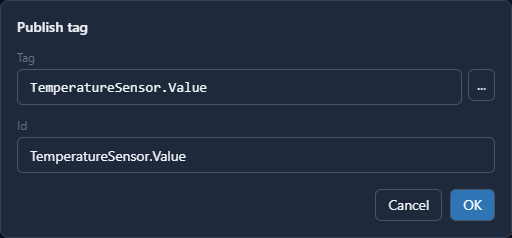
Back in the Publish tag window the Id defaults to the full Tag path (e.g. TemperatureSensor.Value). If you want to set your own property name, you can change the Id field to your own custom value. Click on the OK button.
The Tag has now been added to the list. You can add other Tags by repeating steps 3 to 5.
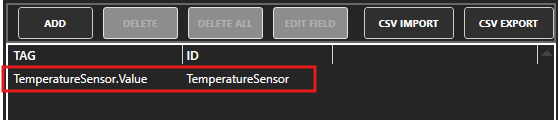
Click on the Apply changes button.
Verify Messages are Published to MQTT Broker
In this step you will confirm that OAS is successfully publishing your selected Tags to the external MQTT broker. By default, the publishing type is set to Continuous and the interval is 10 seconds.
In this section you will need to use a tool like MQTT Explorer to subscribe to the OAS tags in the HiveMQ broker.
Open MQTT Explorer and configure the connection to
broker.hivemq.com.Click on the ADVANCED button. Add a subscription to oas_tags. Click on the BACK button.
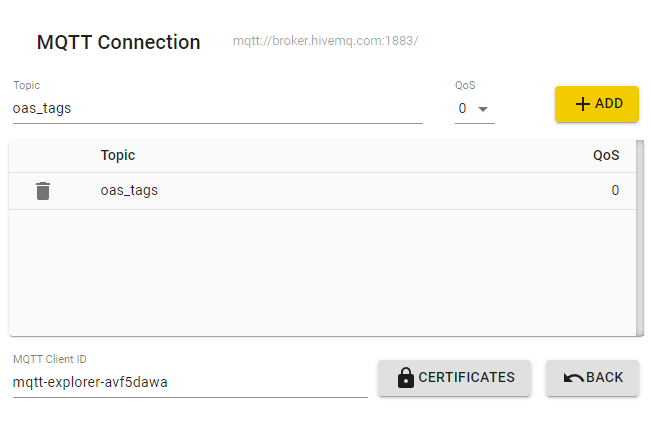
Click on the CONNECT button to open your connection.
Any changes to your TemperatureSensor tag value should be published within 10 seconds. You can inspect the message in the side panel.
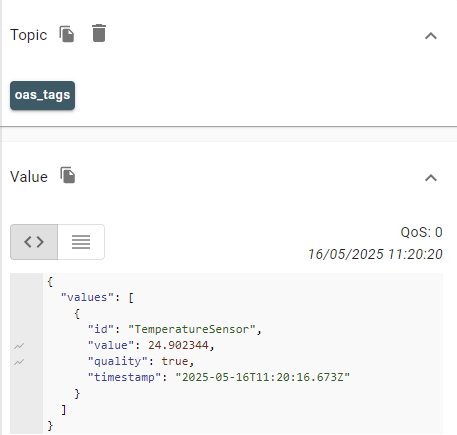
Click on the DISCONNECT button when you are done.
Save the configuration
Apply changes updates the running configuration; it does not write it to disk. Click Save to write the tag configuration file, and set it as the default under Options so that it loads again when the service restarts.
Where next
- Config Reference - every parameter on the driver.
- MQTT How-To guides - logging, transferring and routing MQTT data.