
Message Schemas New
A message schema decides what a published message looks like. It is an AVRO schema, which names the fields of the message, together with a field mapping, which says which part of a tag fills each field.
The same schemas, and the same editor, are used by the MQTT driver, the Kafka driver and the MQTT broker built into the OAS engine. This page covers what they share: the library of schemas on the Options screen, the Edit AVRO schema dialog, and how one message can carry many tags. The text a field can be filled from, such as {site}/{area}/{tagShortName}, is listed in Message Variables.
Where schemas are used
| Used by | How it chooses a schema | Uses |
|---|---|---|
| MQTT driver | Output Format set to ISA-95 Lite or Custom AVRO Schema - see Message format | Its own copy |
| Kafka driver | Output Format set to ISA-95 Lite or Custom AVRO Schema - see Message format | Its own copy |
| MQTT broker | A client names the schema in the topic it subscribes to - see Schema formats and Group topics | The library schema itself |
A driver keeps a copy, the broker does not
A schema in the library is a template for drivers. Load from library... in a driver's Edit AVRO schema dialog copies the schema and its field mapping into that driver, and the driver then keeps its own. Editing or deleting the library schema afterwards does not change what any driver publishes, so there is never a schema "in use" by a driver.
The MQTT broker has no configuration of its own to copy a schema into, so it reads the library directly:
- Editing a library schema changes what the broker's subscribers to that schema receive, from the next publish.
- Deleting a library schema stops the broker's topics that use it. The last retained message on each topic is not cleared, so a client that subscribes later still receives that one message.
Manage schemas on the Options screen
The library is kept on the Options screen of the OAS web app.
Select Options in the sidebar and open the Message Schemas section.
The library is listed, the two built-in schemas first.
Column Shows Name The schema's name, marked Built-in for Default and ISA-95 Lite, and Invalid for a file that is not a usable schema. AVRO record The name of the record the schema defines. Fields The number of fields in the schema. Each message holds One tag, or Many tags when the schema has a tag array or tag map. Modified When the schema was last saved. Select a schema and use the buttons above the list.
Button Does Add Opens an empty Add message schema dialog. Edit Opens the selected schema. For a built-in schema the button reads View, and the schema opens read-only. Double-clicking a row does the same. Duplicate Opens a copy of the selected schema under a new name. Delete Removes the selected schema, after a confirmation. A built-in schema cannot be deleted.
Changes on this section are saved as soon as you click Save in the dialog or confirm a delete. They are not part of the Options screen's pending changes, so Apply changes is not needed.
Info
The Message Schemas section is shown only when the web app is configuring the engine it is connected to directly. It is not shown for a remote OAS engine or a Live Data Cloud node.
Add a schema
- Click Add.
- Enter a Name - see Schema names.
- On the Schema Editor tab, write the schema, load one with Load from file..., or start from a copy of another schema with Load from library.... See Schema Editor tab.
- On the Field Mapping tab, choose what fills each field. See Field Mapping tab.
- Optionally, tick some tags on the Data Test tab to see the messages they would give. See Data Test tab.
- Click Save. Save stays disabled while the name breaks the rules or the schema has a problem that must be fixed - see Problems the editor reports.
Change a schema without affecting the original
There is no version history. To keep the old schema while you try a new one, select it, click Duplicate, give the copy a new name such as Plant A v2, and edit the copy.
Drivers are not affected either way, as they hold their own copies. The broker serves both: a client subscribed to Sine.Value/plant-a keeps receiving the original until it subscribes to Sine.Value/plant-a-v2 instead.
Built-in schemas
| Schema | Message |
|---|---|
| Default | A values array with one entry per tag, each holding id (the tag path), value, quality and timestamp (ISO 8601). It is marked as a tag array, so it holds many tags per message. |
| ISA-95 Lite | A fixed record aligned with the ISA-95 equipment hierarchy, one tag per message. Its fields are listed under ISA-95 Lite in the Kafka Config Reference. |
A built-in schema can be viewed and duplicated, but not edited or deleted, and its name cannot be used for another schema. Duplicating one is the quickest way to start a working schema of your own.
A driver whose Output Format is Default builds its message from its own payload field names, not from the Default schema in the library.
Schema names
The name is also the name of the schema's files, so it is limited to what both Windows and Linux accept:
- letters, digits, spaces and
-_.(), - at most 80 characters,
- not beginning or ending with a space or a period,
- not the name of a built-in schema, in any case,
- not a Windows device name such as
CONorCOM1.
Names are compared without regard to case. A new or renamed schema cannot take the name of one that already exists. The dialog says what is wrong with a name under the Name field.
Where schemas are stored
Each schema is a pair of files on the machine the OAS engine runs on, in a MessageSchemas directory within the engine's ConfigFiles directory - on Windows, C:\ProgramData\OpenAutomationSoftware\ConfigFiles\MessageSchemas.
| File | Holds |
|---|---|
<name>.avsc | The AVRO schema |
<name>.map | The field mapping |
The directory is the library: there is no separate index, and it is read every time it is listed, so a pair of files copied in by hand appears without a restart. A .avsc with no .map is listed with an empty mapping. A file that is not a valid AVRO record is listed as Invalid - it can be opened and fixed, or deleted, but it cannot be duplicated or loaded into a driver. A file whose name breaks the name rules is not listed.
Copy the directory to move a library to another engine, or include it in your backups.
The Edit AVRO schema dialog
The same dialog is opened from two places, and behaves slightly differently in each.
| Opened from the library | Opened from a driver | |
|---|---|---|
| How | Add, Edit, View or Duplicate on the Message Schemas section | Edit… beside AVRO Schema on an MQTT or Kafka driver |
| Name field | Yes | No |
| Batched Messages switch | No - a library schema is always checked as if one message holds many tags | Yes, when the driver has a Batched Messages setting. It is the driver's own setting, so changing it here changes it on the driver. |
| Buttons | Save and Cancel, or Close for a built-in schema | OK and Cancel. OK hands the schema to the driver; it is saved with the driver's other changes. |
The dialog has three tabs: Schema Editor, Field Mapping and Data Test. The last two open once the schema is valid.
Schema Editor tab
Where the schema itself is written.
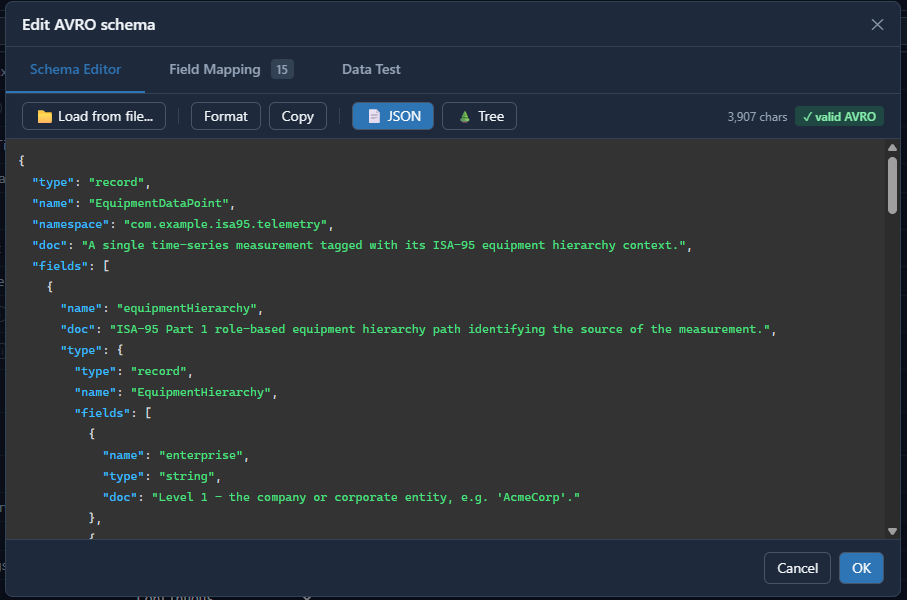
| Button | Does |
|---|---|
| Load from file... | Loads a .avsc or .json file. |
| Load from library... | Copies a schema and its field mapping in from the library, replacing what the dialog holds. Schemas marked Invalid cannot be picked. |
| Format | Tidies the layout of the schema. |
| Copy | Copies the schema to the clipboard. |
| Visual, JSON, Tree | Switch between three views of the same schema. |
Beside the buttons, the tab shows the size of the schema and whether it is valid AVRO. A schema that is not valid opens in the JSON view, with the reason under it, and Visual is unavailable until it is fixed.
Visual view
The schema as a list of fields, which is the easiest way to build one without writing JSON. An empty schema offers to start from A blank record, The sample or A library schema….
- Record name, Namespace and Description belong to the schema as a whole.
- Each field has a Field name, a Type, Of (what an array or map holds), Null (the field can be null) and a Description. Beside them are buttons to move the field up or down, delete it, and show its Default.
- + Add field adds a field, at the top level or inside a record.
- The Type list holds the simple types,
record,array of …andmap of …, and under One per tag, Tag array and Tag map - see Many tags in one message.
Renaming a field, or changing its type, keeps the field's mapping. Deleting a field that is mapped asks first. Parts of a schema the Visual view cannot edit, such as enums or fixed types, are shown as written and kept; edit them in the JSON view.
Field Mapping tab
Every field in the schema, in schema order, with nested records indented under their parent and the number of fields shown on the tab. The schema's own doc text is shown beside each record, which makes a well-documented schema much easier to map.
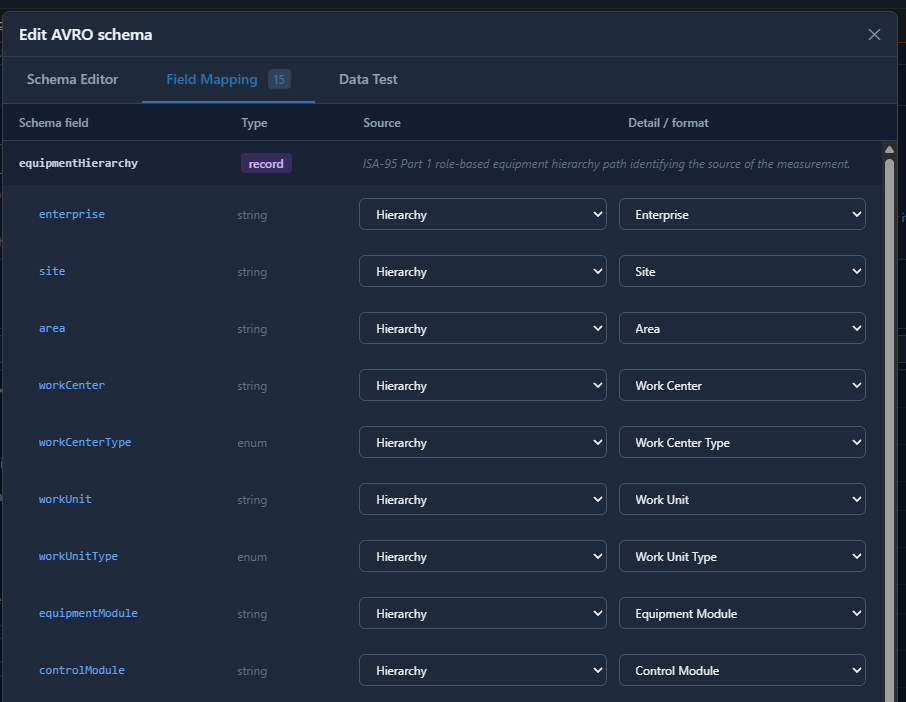
| Column | What it holds |
|---|---|
| Schema field | The field name, taken from the schema. When the schema has a tag array or tag map, each field is also marked per tag (filled once for each tag in the message) or per message (filled once). |
| Type | The AVRO type, taken from the schema. A nested record is marked record and holds no value of its own. |
| Source | What fills the field. |
| Detail / format | Qualifies the source - which tag property, which ISA-95 level, how to render it. |
Sources:
| Source | Fills the field with |
|---|---|
| Tag Property | Value, Timestamp (from source), Tag Name, Tag Path, Group Path, Quality, Tag ID (the tag's Id in the driver's Tags To Publish), or any tag property named with Custom Property... |
| Constant | A fixed value, sent exactly as typed, braces included. |
| Custom Format New | Text and variables in braces, such as {site}/{area}/{tagShortName}. For a text field, and for a tag map's key. See Custom Format. |
| Sequence New | A number for the tag. Only inside a tag array or tag map, and for a tag map's key. See Sequence. |
| Hierarchy | An ISA-95 level, resolved from the groups enclosing the tag. |
| System Timestamp (now) | The engine clock when the message is built. Publishing both this and the tag timestamp makes latency measurable, as the difference between the two. |
| Publish Timestamp | The time of the event that triggered the publish, the same in every message of that publish. Under Continuous publishing it is when the interval triggered; under Specific Time of Day it is the time set; under Event Driven it is when the trigger tag changed. |
| UUID (generated) | A new identifier, so two records for the same tag in the same millisecond can be told apart. |
| Null / Ignore | The field is left null. |
The ISA-95 levels available under Detail / format are Enterprise, Site, Site ID, Area, Work Center, Work Center Type, Work Unit, Work Unit Type, Work Unit ID, Equipment Module, Equipment Module ID, Control Module and Control Module ID, along with Tag Group Path. A level with no matching group resolves to null, and a field left unmapped is published as null rather than left out.
For a value or a timestamp, Detail / format is how it is rendered instead. Timestamp fields take ISO 8601, Unix, Unix ms, Ticks, or Custom for a .NET format string. Value fields take As-is, Force to string, Parse as numeric, Round to integer, Boolean (true/false), Boolean (0/1), or Custom boolean values... for a pair of words of your own. A generated UUID is written Hyphenated (8-4-4-4-12) or Compact (no hyphens).
Info
Tag Name returns the last two components of the tag path. On a two-level tag it is identical to Tag Path. Where a field has to identify the tag uniquely, map Tag Path.
Custom Format
Write the text in the box, and pick from Insert a variable… to add a variable where the cursor is. The variables are grouped by what they read: The tag, This entry, The tag's group, and The message and the system. Under the box, the text is filled in for an example tag; the Data Test tab shows it for your own tags.
| Custom Format | Gives, for Acme.Dallas.Plant.Line1.Speed.Value |
|---|---|
{site}/{area}/{tagShortName} | Dallas/Plant/Speed |
pointID_{tagSeq1} | pointID_1 for the first tag in Tags To Publish |
{{literal}} {tagName} | {literal} Speed.Value |
Write {{ and }} for a brace that is not a variable. A variable with no value is never sent as empty text: the tag is left out of the message, or, in a field filled once per message, the message is not sent. Every variable, and the rules for each driver, are on the Message Variables page.
Sequence
| Detail / format | Gives |
|---|---|
| Position in the message, from 1 | 1, 2, 3… in each message. The same number can be a different tag in the next message. |
| Position in the message, from 0 | 0, 1, 2… in each message. |
| The tag's fixed position, from 1 | The tag's position in the driver's Tags To Publish, from 1. The same tag always has the same number, as long as the list is not changed. |
| The tag's fixed position, from 0 | The same, from 0. |
For a number that must always mean the same tag, such as a point ID, use a fixed position. The MQTT broker has no Tags To Publish list, so on the broker a fixed position has no value and the tag is left out.
Data Test tab
Tick one or more tags in the tag browser on the left, up to 500, and the tab shows the messages they would publish with this schema and mapping right now, built from live tag data. Nothing is published.
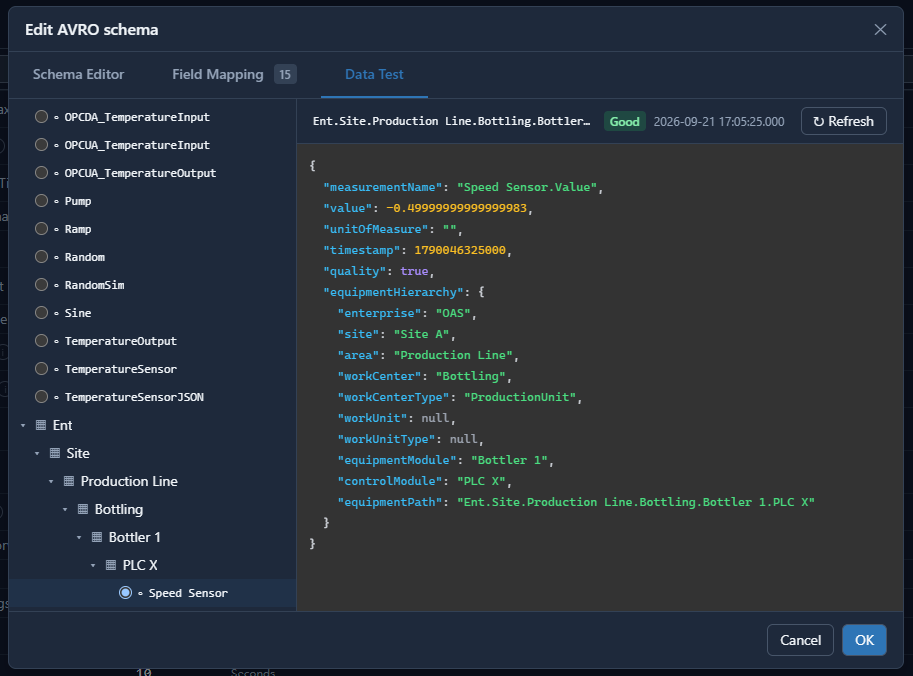
- The header shows how many tags are ticked and how many messages they give. Clear unticks them, and ↻ Refresh takes a fresh reading.
- Each message is shown with the tags in it. Opened from an MQTT or Kafka driver, each message also shows the Topic it would be published on, worked out from the driver's Publish Topic Id.
- A tag that would be left out of a message, and why, is listed as a note above the messages.
- When one message can hold many tags, Max tags per message tries a limit on the tags in one message without changing the driver: a larger set is split into several messages.
Opened from the library, the ticked tags go into one message. Opened from a driver, they follow the Batched Messages switch.
This is the quickest way to catch a mapping that is valid but wrong: a hierarchy level that resolves to null because the tag is not under a group carrying that level, a timestamp in the wrong units, or a boolean that reaches the consumer as a string.
Many tags in one message New
A schema describes one tag unless one of its fields is a tag array or a tag map, which holds one entry for each tag in the message.
| Type | Holds | Example |
|---|---|---|
| Tag array | A list, one element per tag | "values": [ {"id":"Speed","value":1450}, {"id":"Temp","value":71.3} ] |
| Tag map | An object, one entry per tag under a key the mapping gives | "points": { "Speed": {"value":1450}, "Temp": {"value":71.3} } |
To make one, choose Tag array or Tag map as the field's Type in the Visual view. The field must be an array or a map. Each element can be a record or a simple value. A tag array or tag map can sit at the top level of the schema or inside a nested record, but not inside another array or map, and a schema can have several, each holding the same tags in the same order.
In the schema itself the choice is an attribute beside the field's type, which AVRO ignores, so the schema stays a standard AVRO schema:
{ "name": "values", "oasTagArray": true,
  "type": { "type": "array", "items": { "type": "record", "name": "TagValue", "fields": [ ... ] } } }
A tag map uses "oasTagMap": true on a map field in the same way.
How the fields are filled
| Field | Filled |
|---|---|
A field of a tag array or tag map, such as values[].id or points{}.value | Once for each tag - marked per tag on the Field Mapping tab. |
A tag map's key, shown as points{} | Once for each tag, from Tag Property, Sequence or Custom Format. It is always text, and a tag map must have one. |
| Any other field, such as a site name, a publish time or a message ID | Once for the whole message - marked per message. |
A field filled once per message cannot read one tag, so it cannot be mapped to a tag's value or to a variable of one tag. It can read the tag's group - Group Path, Hierarchy or a group variable - and that means one message per group: the tags are split so that each message holds the tags of one group.
When two tags give the same key in a tag map, the first tag keeps it and the second is left out of that map; a tag that gives no key is left out the same way. Either one still appears in the schema's other tag arrays and tag maps, and the system log notes it.
When a message holds many tags
The schema says where the tags go. How many tags go into one message is decided by whatever publishes it:
| Publisher | Many tags in one message when |
|---|---|
| MQTT driver | Batched Messages and Publish All Tags As One Topic are on. The tags of one publish that share a topic share a message, up to Max Tags Per Publish. See MQTT Config Reference. |
| Kafka driver | Output Format is Custom AVRO Schema, and Batched Messages and Publish All Tags As One Topic are on. The same rules as MQTT. See Kafka Config Reference. |
| MQTT broker | A client subscribes to a group topic under $schema/default/, or under a schema that has a tag array or tag map. One message per group, up to Group Max Tags Per Message. See One message per group. |
Otherwise each message holds one tag, and each tag array or tag map in it holds one entry.
Problems the editor reports
The editor checks the schema and its mapping together, the same way the engine does when it publishes.
- ✕ Errors are shown in red, beside the field on the Field Mapping tab and at the foot of the dialog, and counted on the tab. They stop Save and OK. An unknown variable in a Custom Format, a tag array inside an array, and a tag map with no key are always errors - a driver given such a schema publishes nothing with it and logs why. A field filled once per message that reads one tag is an error whenever one message holds many tags.
- ⚠ Warnings are shown in orange and do not stop OK. They point out a schema that will work but probably not as intended - for example a tag array while Batched Messages is off, so each message holds one tag, or a tag array with nothing in it mapped to the tag, so every element is the same.
- The library is stricter than a driver, because a library schema may be used with many tags per message. A Custom Format on a field that is not text is a warning on a driver, which still publishes it, and an error in the library, which will not save it.
Two more notes are shown at the foot of the dialog when they apply. No field mapped to Quality means values will be published without their quality. A field outside the tag array or tag map reads the tag's group, so one message is sent per group says that the message will be split by group, as described under How the fields are filled.
A problem found while publishing - a variable with no value, or a schema or mapping that cannot be read - is logged in System Errors under the type of whatever published it: MQTT for an MQTT driver and for the MQTT broker, Kafka for a Kafka driver, Snowflake for a Snowflake driver.
Where next
- Message Variables - every variable a Custom Format or a topic pattern can use.
- MQTT Config Reference - Output Format, Batched Messages and topic patterns on the MQTT driver.
- Kafka Config Reference - Output Format, the Schema Registry and topic patterns on the Kafka driver.
- MQTT Broker - schema topics, group topics and one message per group.