
MQTT Broker
OAS is both an MQTT client and an MQTT broker. The broker is built into the OAS engine, on Windows and on Linux, so an MQTT client can read and write tags without a separate broker being installed. It serves every tag the engine can reach: its own, those of remote OAS engines and those hosted through Live Data Cloud.
This page covers the broker. The client driver, which connects OAS to a third party broker, is covered in Getting Started and the Config Reference.
Info
The broker needs a licence for the MQTT driver to read and write tags. Open Configure OAS and check that MQTT appears in the licensed drivers list. The broker was added in OAS 15.00.0001.
Set up the broker
The broker is not set on the Drivers screen. Its options belong to the engine as a whole.
Select Options in the sidebar and open the MQTT Broker section.
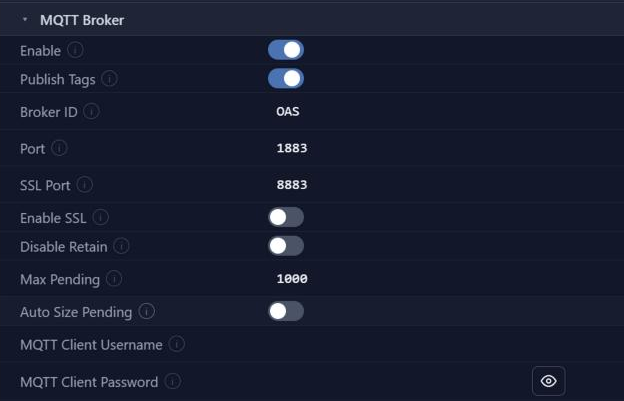
Make sure Enable and Publish Tags are turned on. Enable runs the broker; Publish Tags is what makes tags available as topics.
Set Port, the port number clients connect to without SSL. The default is 1883.
To accept encrypted connections, turn on Enable SSL and set SSL Port. The default is 8883. Two more rows appear: enter the path of the broker's private key file in MQTT Private Key File and, if the key has a password, enter it in MQTT Private Key Password.
To make clients sign in, enter a user name in MQTT Client Username and a password in MQTT Client Password. Clients then have to connect with that user name and password.
Click on the Apply changes button. This saves the options immediately - there is no separate Save step on the Options screen.
Warning
Changes to the port numbers and to the SSL options take effect only after the OAS service is restarted.
If security on any OAS engine restricts reading or writing tags, open the Remote Services section on the same screen and enter the user that has access in Security User Name and Security Password. If security is left at its default, which enables every feature, skip this step.
The broker is now ready for clients.
Broker options
Every option in the MQTT Broker section of the Options screen.
| Property | Default | Notes |
|---|---|---|
| Enable | On | Enables the OAS MQTT broker. |
| Publish Tags | On | Publishes OAS tags as topics. When on, a client can subscribe to a tag topic such as Sine.Value and receive updates on that tag property. When off, tag topics are not published. |
| Broker ID | OASBroker | The ID used for the broker. |
| Port | 1883 | The port number the broker uses without SSL. |
| SSL Port | 8883 | The port number the broker uses with SSL. |
| Enable SSL | Off | Enables SSL for the broker, and shows MQTT Private Key File and MQTT Private Key Password. |
| Disable Retain | Off | Publishes tag values without the retain flag. This may improve throughput at large tag counts, but a client that subscribes to a tag already being published does not receive its value until the value next changes. |
| Max Pending | 1000 | The most messages the broker holds for one subscriber that has not been sent them yet. When a subscriber's queue is full its oldest waiting message is dropped. See Pending messages. |
| Auto Size Pending | Off | Lets the broker raise the pending message limit above Max Pending by itself. See Pending messages. |
| Group Max Tags Per Message New | 1000 | The most tags in one message on a $schema/ group topic. A group with more tags to send is sent as several messages on the same topic, in order. 0 means no limit. A change applies on the next publish, without restarting the broker. See One message per group. |
| MQTT Private Key File | (blank) | Shown when Enable SSL is on. The path of the private key file for the broker. |
| MQTT Private Key Password | (blank) | Shown when Enable SSL is on. The password for the private key. |
| MQTT Client Username | (blank) | The user name clients must connect with. |
| MQTT Client Password | (blank) | The password clients must connect with. |
| Topic Aliases | (empty) | A table that maps topic names to tag names. See Topic Aliases. |
Pending messages
A subscriber is sent one message for every tag it subscribes to that changes, and a client that has just subscribed is sent the last value of every matching tag at once. The broker queues those messages for each subscriber until they are sent.
Max Pending is the size of that queue. Set it to at least the number of tags one subscriber can be sent at the same moment, because a full queue drops its oldest waiting message. Each subscriber that is slow, or has stopped reading, can hold up to this many messages in memory.
Auto Size Pending is for when the number of tags that change at the same moment is not known in advance. With it on, Max Pending becomes the minimum and the limit follows the traffic: twice the most messages the broker has published in one second, and twice the number of last values sent to a client that has just subscribed, up to 50,000 messages for each subscriber. It has four caveats:
- Max Pending no longer limits the memory a slow subscriber can use, which can reach 50,000 messages for each subscriber.
- The limit in effect depends on recent traffic, not only on the configuration.
- The limit is raised after a burst has been published, so the first burst larger than the current limit still loses its oldest messages.
- The limit comes back down slowly, about 2 percent a second, after traffic drops.
Changes to either option apply immediately, without restarting the broker.
Topic Aliases
By default a tag is published on a topic that is its tag name, as described under Topic names. Topic Aliases maps a topic name to a tag name instead. It is only required when the MQTT client cannot adjust its topic names to match the tag names.
Each row of the table has a Tag and a Topic. Rows are managed with the Add, Delete, Delete All, Edit Field, CSV Import and CSV Export buttons.
A tag with an alias is published only on the alias topic. Its tag name topic is no longer available to subscribers.
Certificates
Two buttons above the options deal with the broker's certificates:
- Create broker certificate generates a self-signed certificate carrying the broker's hostname or IP address and sets it on the broker. Without one, OAS uses the shared node certificate.
- Manage trusted clients controls mutual TLS - the clients that are allowed to connect, whether a device, a remote OAS engine or a third party application.
Message Schemas New
The Options screen also has a Message Schemas section: the library of message schemas that the MQTT and Kafka drivers and the broker use. Managing it, and the schema editor, are covered on their own page: Message Schemas.
The broker uses a library schema by its name, live: a client adds the name to a topic to receive it in the schema's format - see Schema formats and Group topics. So unlike a driver, which keeps its own copy, the broker follows every change made in the library at once. Deleting a schema stops its topics, but the last retained message on each is not cleared.
Connect a client
Any MQTT client can connect to the broker. Point it at:
- the host name or IP address of the machine the OAS engine runs on,
- the Port number, or the SSL Port number when Enable SSL is on,
- the MQTT Client Username and MQTT Client Password, when they are set.
The client then subscribes and publishes using the topic names below.
Topic names
A topic is the path of a tag variable, in the same notation used everywhere else in OAS.
| To reach | Topic |
|---|---|
| The value of a tag | Ramp.Value |
| Another variable of the tag | Ramp.Description |
| A tag called Temperature in a tag group called Site1 | Site1.Temperature.Value |
| A tag on a remote OAS engine | \\192.168.0.1\TagName.Value |
| A tag hosted through Live Data Cloud | RemoteSCADAHosting.myLiveDataCloudNode.TagName.Value |
| A Live Data Cloud tag through a remote OAS engine | \\192.168.0.1\RemoteSCADAHosting.myLiveDataCloudNode.TagName.Value |
A remote engine is given as \\ followed by its domain name or IP address.
Read a tag
Subscribe to the topic of the tag variable. The message is JSON carrying the value, the timestamp and the quality:
{"Value":84.0,"TimeStamp":"2020-07-22T12:59:44-04:00","Quality":true}
To receive the value alone, not wrapped in JSON, subscribe to TagName.ValueOnly instead. This needs OAS 20.00.0133 or later.
Schema formats New
To receive a topic in the format of a message schema, add / and the name of the schema to the topic:
Sine.Value/{schema-name}
{schema-name} is the name given to the schema in the Message Schemas library, written in lowercase with each space replaced by -.
| Schema name | Topic |
|---|---|
| ISA-95 Lite | Sine.Value/isa-95-lite |
| Plant Floor | Sine.Value/plant-floor |
Publish Tags has to be on, as it does for every tag topic. Sine.Value on its own is still available alongside. A schema topic is retained when the tag's own topic is. Sine.ValueOnly/{schema-name} and Sine.Value/Default are not schema topics.
Wildcards
Two wildcards are supported, from OAS 18.00.0041:
| Topic | Subscribes to |
|---|---|
# | The Value variable of every tag in the OAS engine. |
+/<tag variable> | The named variable of every tag in the OAS engine, for example +/DigitalAlarmActive. |
Topics that start with $, such as the group topics, are not included in a # subscription, so an existing # subscriber does not receive every value twice.
Group topics New
A client can subscribe to every tag in a group, or to a whole branch of the tag tree, with one subscription. Each tag group is a topic level, so the standard MQTT wildcards work: + for one level, # for a level and everything below it.
| Subscribe to | Receive |
|---|---|
$group/Plant/Line1/+ | Every tag in the group Plant.Line1, each on its own topic, such as $group/Plant/Line1/Speed.Value. |
$group/Plant/Line1/# | Those, and every tag in every group below Line1. |
$group/Plant/+/Speed.Value | The Speed tag in each group directly under Plant. |
$schema/isa-95-lite/Plant/Line1/# | The same tags as $group/Plant/Line1/#, each formatted by the ISA-95 Lite schema. |
$group/sends the same payload as subscribing to the tag itself.$schema/{schema-name}/formats each message with a schema from the Message Schemas library, named as in Schema formats. The schema name cannot be a wildcard:$schema/+/is not accepted.- Only a tag's Value is published on a group topic.
- A new subscriber receives the current value of every tag straight away.
- Tags added to, removed from or renamed in a group are followed automatically.
- Group topics are read only. Publishing to one does nothing, and is logged.
- A tag or group whose name contains
/,+or#has no group topic. - When a subscription cannot be accepted, the client is told in the subscribe acknowledgement and stays connected. The reason is written to System Errors.
One message per group
With the Default schema, or any library schema that has a tag array or tag map, a group's tags arrive together in one message instead of one message per tag.
| Subscribe to | Receive |
|---|---|
$schema/default/Plant/Line1 | One message on that topic, holding all of Line1's tags. |
$schema/default/Plant/Line1/# | That, and one message for each group below Line1, each on its own topic. |
$schema/default/Plant/+/Pump | One message for the Pump group under each line. |
{"values":[
  {"id":"Plant.Line1.Speed.Value","value":1450,"quality":true,"timestamp":"2026-10-14T14:02:11.000Z"},
  {"id":"Plant.Line1.Temp.Value","value":71.3,"quality":true,"timestamp":"2026-10-14T14:02:11.100Z"}
]}
- A message holds only the group's own tags. The groups below it have topics of their own.
- The first message a client receives has every tag in the group. After that, each message holds only the tags that changed.
- A group with more tags to send than Group Max Tags Per Message is sent as several messages on the same topic, in order.
- The messages are not retained.
How the message variables are filled in a group message, such as {topic} and {tagCount}, is listed on the Message Variables page.
Read permissions New
For every message it sends, the broker checks that the client's login may read that tag, under the Read Tags settings of its security group. Before this release the check was made only when the client subscribed.
- A message the login may not read is not sent to that client. Other clients are not affected. The first few are recorded in System Errors.
- A group topic subscription is refused if the login cannot read every tag it covers at that moment. A message holding several tags is sent only if the login can read all of them.
- A
TagName.ValueOnlytopic follows the read permission ofTagName.Value. - A login whose security group uses Read Tags Disable Start With cannot subscribe to
+/#. Subscribe to specific topics, or to group topics, instead. - An engine whose Default security group does not restrict reading does no extra work.
Upgrading
A broker client that relied on +/#, +/+ or a ValueOnly topic to see a tag its login cannot read no longer receives it. Grant the login read access to the tags it needs.
Write to a tag
Publish to the same topic you would subscribe to. A client can publish to any tag that already exists.
To carry more than a single value, create a tag with its Data Type set to JSON and publish a JSON message to it. JSON Handling in OAS can then parse the message.
Deployment
The OAS engine can be deployed to as many servers as you need, on Windows or Linux, as a standard installation or in a Docker container. Each one has its own broker, and each broker can communicate with any OAS engine.
Where next
- MQTT Driver - the client driver and how it fits with the broker.
- Getting Started - connect OAS to a third party broker as a client.
- Config Reference - every parameter on the client driver.
- Message Schemas - the schema library the broker's schema topics and group topics use.
- Message Variables - what each variable gives on the broker.
- OAS MQTT Broker video - connecting an MQTT client to the broker, indexed by chapter.