FAQs – Data Logging

MS Access Error microsoft.ace.oledb.12.0 provider is not registered
MS Access Class not Registered System Error

For Office 2010, the following update will correct this issue.

https://www.microsoft.com/en-us/download/details.aspx?id=39664

For Office 365 (please note, by default Office365 installs the 32-bit version regardless of your system), use:

https://www.microsoft.com/en-us/download/details.aspx?id=54920

I receive a System Error when trying to log or access an Oracle database

OAS version 12.00.0043 now uses OracleManagedDataAccess assembly. If you are using an older version of OAS we recommend to update to the latest version. If you have upgraded from a previous version and using TNSNAMES.ORA name in the Database file please see the FAQ on TNSNAMES.ORA.

Data Logging System Error occurs with database engine error null values not allow.
The cause of this error is one or more of the database table columns has been modified  to not allow null values.  OAS creates the columns in the table to allow null values so when the data quality is bad for a tag value a null value will be inserted into the table.  The only column that should be set to not allow null values is the DateAndTime column.  There are 2 solutions to this error:
  1. Please review the columns in each table with the SQL Server Management Studio.  If they have been changed to not allow null values change them back to allow null values.
  2. Go to each logging group and enable the property Discard Null Rejects under the Database tab.  Keep in mind that with this property enabled the records to be logged that contain null values will be discarded and not logged.
Menu Configure Data Logging Discard Null Rejects
Security Login Error occurs with Open or Create routines
View the Database Security Login topic on how to setup security logins and access writes to create, open, and read and write to the database.
Data is not logged to the database engine

View the Data Logging Errors troubleshooting guide for a complete list of error causes and solutions.

View the source of the problem under Configure-System Errors.

The complete history of errors can be viewed under C:\Program Files\Open Automation Software\OAS\Log or the path that is set under Configure-Options-System Logging.

Enable Log Data Logging Transactions under Configure-Options-System Logging to see the details of each transaction and error returned from the database engine.

CSV Logging to a Remote Mapped Drive
Either enable the SYSTEM account to have read and write access to the mapped drive and directory, or set the OAS Engine Service LogOn to a user account that would have access to the remote mapped drive using these steps in setting the OAS Engine Service LogOn.
Logging to MS Access on a Remote Mapped Drive
Either enable the SYSTEM account to have read and write access to the mapped drive and directory, or set the OAS Reports Service LogOn to a user account that would have read and write access to the remote mapped drive.
Error reports LogIn failure to database engine when trying to open connection
View the following video on how to setup security in the database engine:
Direct link: /videos/#troubleshoot-connection-login
The database engine language is different than the Regional Language settings of the Data Logging and / Alarm Logging Service. Data Logging updates, Alarm Logging updates, trend history, and / alarm history is not working due to invalid date format.
Go to Configure-Options-History and Enable History Date Format. Examples: yyyy-MM-dd HH:mm:ss MM/dd/yyyy HH:mm:ss
I need to log to an Oracle database engine using the TNSNAMES.ORA file.
OAS version 12.00.0043 now uses OracleManagedDataAccess assembly which does not support TNSNAMES.ORA.  You can set the entire path from the TNSNAMES.ORA file in the Database field of the data logging, alarm logging, or recipe group directly. Use the following as the Database name: (DESCRIPTION=(ADDRESS_LIST=(ADDRESS=(PROTOCOL=TCP)(HOST=MyHost)(PORT=MyPort)))(CONNECT_DATA=(SERVER=DEDICATED)(SERVICE_NAME=MyOracleSID))) As example for a system with a computer name GWDESK and the Oracle database name OPCDb: (DESCRIPTION=(ADDRESS_LIST=(ADDRESS=(PROTOCOL=TCP)(HOST=GWDESK)(PORT = 1521)))(CONNECT_DATA=(SERVER= DEDICATED)(SERVICE_NAME=OPCDb)))
How much memory on the hard disk is taken up when logging to SQL Server?
The following should be used as an aid in sizing database requirements. The method used is to store 100 Tags each, of a few common data types for one hour at a 1 second continuous interval to separate tables. SQL Server 2005 Express was used to gather this information. As always your final results may vary. In SQL Server you can set the Database property under Options for Recovery model to Simple to reduce disk usage. Boolean Data type table size Rows: 3598 Reserved: 200 KB Data: 152 KB Index Size: 16 KB Unused: 32 KB Double data type table size Rows: 3598 Reserved: 3272 KB Data: 3200 KB Index Size: 16 KB Unused: 56 KB Integer data type table size Rows: 3598 Reserved: 1672 KB Data: 1600 KB Index Size: 16 KB Unused: 56 KB String data type table size (100 char / tag) Rows: 3589 Reserved: 84752 KB Data: 84552 KB Index Size: 144 KB Unused: 56 KB
Which database engine is most efficient with OPCDatabase.NET?
SQL Server provides the ability to log multiple records in one call, so using SQL Server on a local or remote server is the best choice.
Which database engine uses the least amount of disk space when logging values?
CSV files without a database are the smallest usage. SQL Server and mySQL are very comparable. Oracle uses approximately 4 times the disk space as SQL Server and mySQL. In SQL Server you can set the Database property under Options for Recovery model to Simple to reduce disk usage.
Setup SQL Server for authentication with UAC which was introduced on Windows Vista.

Videos – Data Logging

Data Historian

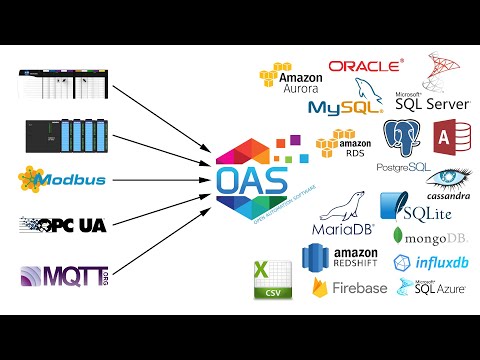
Data logging for IIoT data to SQL Server, Oracle, Access, mySQL, SQL Azure, MongoDB, MariaDB, SQLite, PostegreSQL, Cassandra, and CSV files.

Open Database Connectivity

Open data and logging format to MS SQL Server, SQL Azure, Oracle, MySQL, PostgreSQL, MongoDB, MariaDB, Cassandra, SQLite, InfluxDB, Amazon Aurora, Amazon RDS, Amazon Redshift, Google Firebase, MS Access (Windows only), and CSV Files.

Getting Started Data Logging

How to setup data logging for all Open Automation Software logging types.

  • 00:00 – Introduction
  • 01:30 – Getting Started
  • 03:00 – Continuous Logging
  • 04:15 – SQL Server
  • 06:25 – Save Changes
  • 07:00 – Continuous Narrow Logging
  • 09:30 – Event Driven
  • 11:20 – Handshake Confirmation
  • 12:45 – High Speed Logging
  • 15:00 – Log to Stored Procedure
  • 15:25 – Triggers
  • 16:30 – Event Narrow Logging
  • 18:00 – Timestamps
  • 20:30 – Snapshot Logging
  • 21:45 – Specific Time of Day Logging
  • 22:50 – Data Change Row Logging
  • 25:15 – Data Change Narrow Logging
  • 26:45 – Networking
  • 31:55 – Store and Forward
  • 37:30 – Disable Store and Forward
  • 40:15 – Update Records
  • 40:50 – Dynamic Server, Database, and Table
  • 41:10 – Automatic Deletion
  • 41:40 – CSV File Logging
  • 45:30 – Programmatic Interface
  • 46:45 – CSV Export / Import
  • 48:20 – One Click Automation
  • 52:20 – Transaction Logging
  • 54:25 – System Errors
  • 56:00 – Contact Us
  • 56:50 – Read Database Data

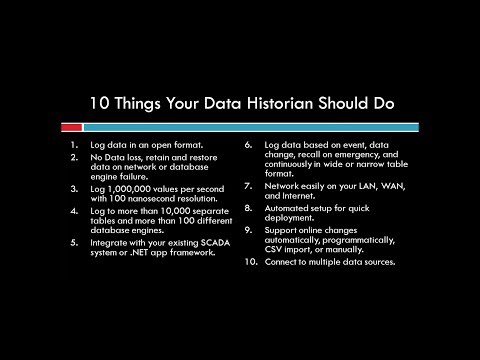
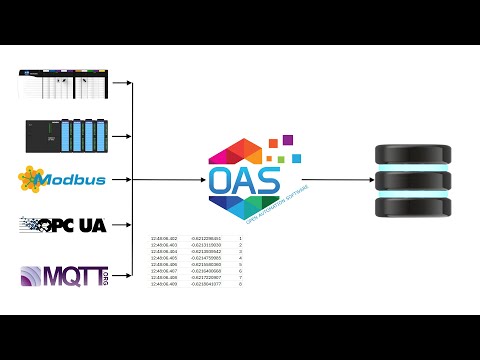
10 Things Your Data Historian Should Do

How to implement data logging automated features for local and networked data logging demonstrating data buffering.

Data Accuracy

See how OAS transfers all values over a network with 100 nanoseconds resolution and log with store and forward to MS SQL Server.

OAS Performance

See 100,000 Open Automation Software tags running on a Raspberry Pi 4 all updating once per second and logged to a SQL Server database over a network.

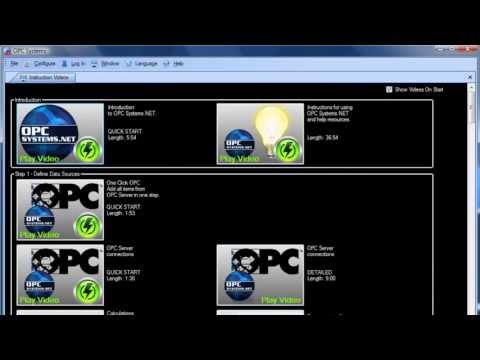
One Click Database

Automatically setup data logging to SQL Server of all data from Kepware OPC Server in one step.

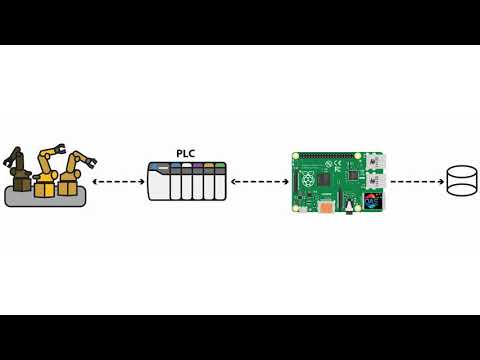
Log Buffered PLC Data

Log high speed buffered data from a controller at 1 millisecond per sample.

Logging Data from ControlLogix at High Speed

Quick demonstration of logging high speed data from an Allen Bradley ControlLogix processor to SQL Server.

Update Records

How to setup Data Logging to update existing records based on dynamic query Tag.

High Speed Data Logging

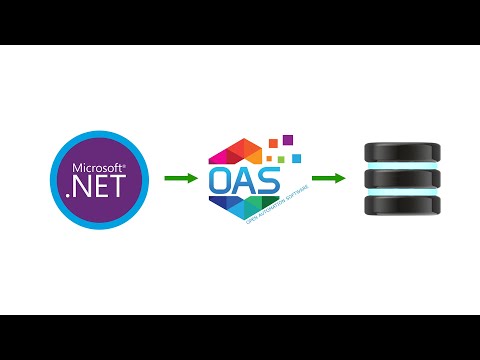
How to log data with 100 nanosecond resolution for up to 1,000,000 records per second to SQL Server from a .NET application.

Store and Forward

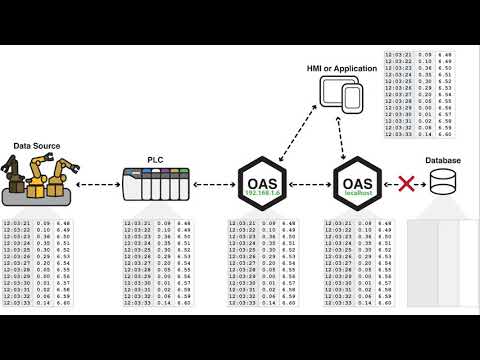
How to setup data logging so there is no data loss on a network or database engine failure.

Data Logging High Speed Data from Visual Studio Applications

Open Automation Software will support data logging from Visual Studio application with resolution to 100 nanoseconds.

View the following video for a quick tutorial on high speed data logging and automated setup:

In order to log values directly from a Visual Studio application you will need to implement the .NET Data Connector as demonstrated in the WinForm Example Code under FormDataLogging.

You can log values just as if the values were from an OPC Server, just setup Tags with a data source of Value, the desired data type, and then from your Visual Studio application use the WriteTags method of the OPC Systems Data Connector component.

If you also include TimeStamps array in the WriteTags method the service will use the TimeStamps you write instead of the CPU clock time when writing values to the database.

You can also setup data logging groups to be triggered based on event and assign a Boolean Tag as the Trigger Tag. From your Visual Studio application your code in simple form would look like the following:

 Dim sourceTimeStamps(2) As Date
        Dim timeNow As Date = Now
        sourceTimeStamps(0) = timeNow
        timeNow = timeNow.AddTicks(1)
        sourceTimeStamps(1) = timeNow
        timeNow = timeNow.AddTicks(1)
        sourceTimeStamps(2) = timeNow
        Dim TagsToWrite(14) As String
        Dim ValuesToWrite(14) As Object
        Dim TimeStampToWrite(14) As Date
        TagsToWrite(0) = "Value01.Value"
        ValuesToWrite(0) = 1
        TimeStampToWrite(0) = sourceTimeStamps(0)
        TagsToWrite(1) = "Value02.Value"
        ValuesToWrite(1) = 1
        TimeStampToWrite(1) = sourceTimeStamps(0)
        TagsToWrite(2) = "Value03.Value"
        ValuesToWrite(2) = 1
        TimeStampToWrite(2) = sourceTimeStamps(0)
        TagsToWrite(3) = "Trigger.Value"
        ValuesToWrite(3) = True
        TimeStampToWrite(3) = sourceTimeStamps(0)
        TagsToWrite(4) = "Trigger.Value"
        ValuesToWrite(4) = False
        TimeStampToWrite(4) = sourceTimeStamps(0)
        TagsToWrite(5) = "Value01.Value"
        ValuesToWrite(5) = 2
        TimeStampToWrite(5) = sourceTimeStamps(1)
        TagsToWrite(6) = "Value02.Value"
        ValuesToWrite(6) = 2
        TimeStampToWrite(6) = sourceTimeStamps(1)
        TagsToWrite(7) = "Value03.Value"
        ValuesToWrite(7) = 2
        TimeStampToWrite(7) = sourceTimeStamps(1)
        TagsToWrite(8) = "Trigger.Value"
        ValuesToWrite(8) = True
        TimeStampToWrite(8) = sourceTimeStamps(1)
        TagsToWrite(9) = "Trigger.Value"
        ValuesToWrite(9) = False
        TimeStampToWrite(9) = sourceTimeStamps(1)
        TagsToWrite(10) = "Value01.Value"
        ValuesToWrite(10) = 3
        TimeStampToWrite(10) = sourceTimeStamps(2)
        TagsToWrite(11) = "Value02.Value"
        ValuesToWrite(11) = 3
        TimeStampToWrite(11) = sourceTimeStamps(2)
        TagsToWrite(12) = "Value03.Value"
        ValuesToWrite(12) = 3
        TimeStampToWrite(12) = sourceTimeStamps(2)
        TagsToWrite(13) = "Trigger.Value"
        ValuesToWrite(13) = True
        TimeStampToWrite(13) = sourceTimeStamps(2)
        TagsToWrite(14) = "Trigger.Value"
        ValuesToWrite(14) = False
        TimeStampToWrite(14) = sourceTimeStamps(2)
        NETDataConnector1.WriteTags(TagsToWrite, ValuesToWrite, TimeStampToWrite)

The result in the database for this one WriteTags method would be 3 records:

Data Logging High Speed Data

Database Security Login

When you receive an error for Data Logging, Alarm Logging, or Recipe that there is a problem with the login security to the database engine in trying to open it or create it follow these steps which are shown for SQL Server, and would be similar to the other database engines.

Step 1

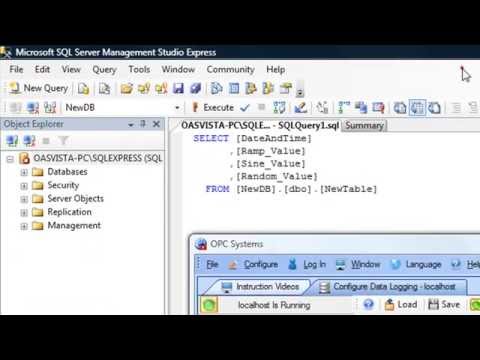
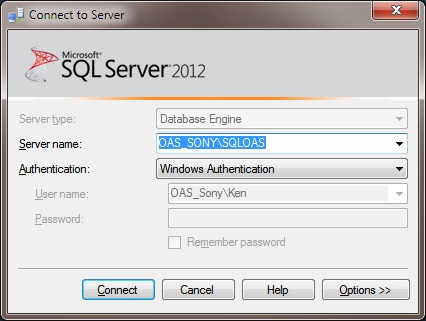
Start SQL Server Management Studio and connect to the database engine.

Database Security Login 1

Step 2

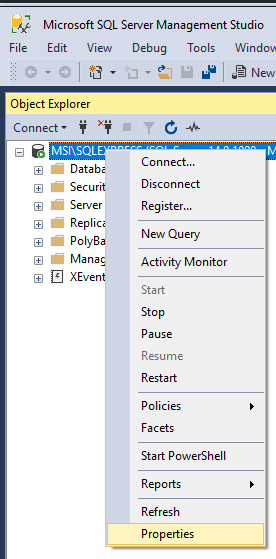
Select the database engine in the Object Explorer and right click to select Properties.

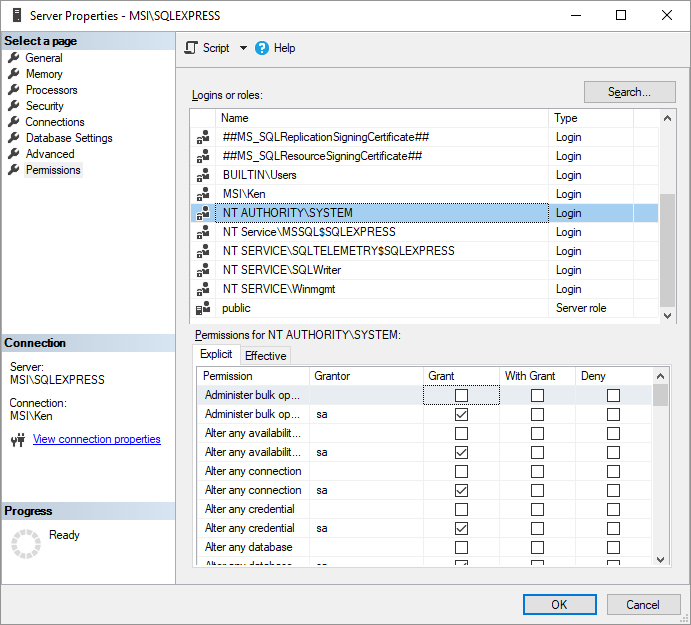
Select Permissions on the left and choose NT AUTHORITY\SYSTEM or the user you are using with SQL login and Grant all permissions.

Note: NT AUTHORITY\SYSTEM is the account that the OAS Engine runs under by default and would be used when the Data Logging Group, Alarm Logging Group, or Recipe Group is using Windows Authentication for login.  If it is a remote database engine choose the Name of the system where OAS is running.

Select OK

Step 3

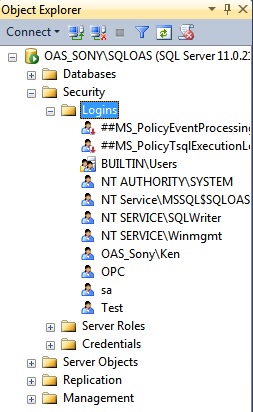
Select Security-Logins in the database engine tree.

Database Security Login 2

For Windows Authentication Login open the PC account that the OAS Database Service is running on this would be NT AUTHORITY\SYSTEM for the local system.

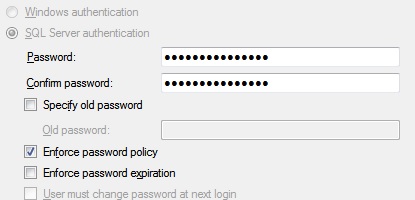
For SQL Server Login either add a new account or select an existing account where you know the password. For SQL Server login make sure the property to Enforce password expiration is disabled:

Database Security Login 3

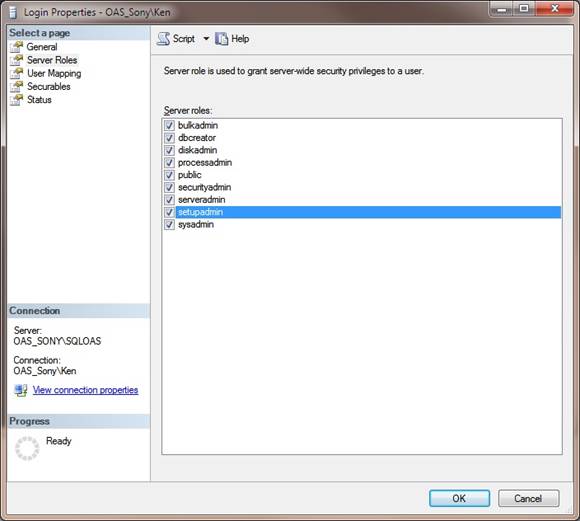
Under Server Roles enable all properties or at least sysadmin and public.

Database Security Login 4

Select OK and return to OAS to see if the Login error has been resolved.

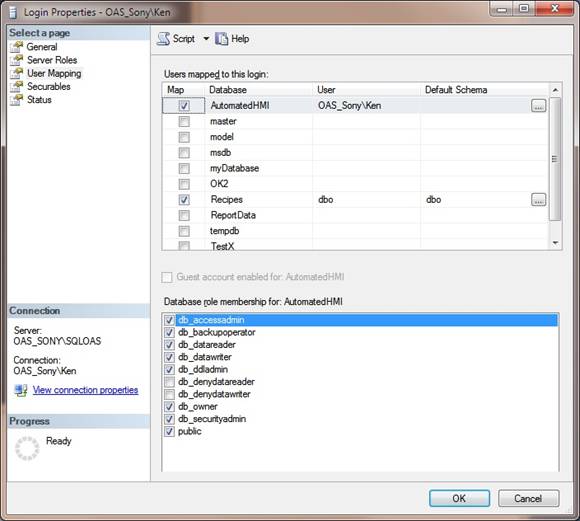
If you still encounter a security access error select User Mapping and select the database you want to access to enable all properties except db_denydatareader and db_denydatawriter.

Database Security Login 5

Export and Import CSV Data Logging

Export CSV Data Logging

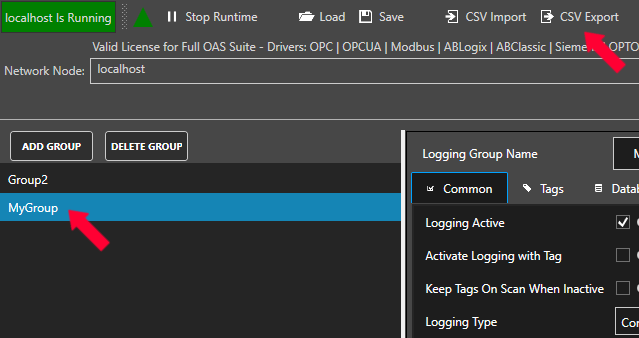
Select the Logging Group name from the list on the right and then click the CSV Export button in the top menu.  This will generate a base Comma Separated Variable file for all of the logging group’s properties and individual CSV files for each of the logging group’s fields.

The individual file names will include the base name with underscore following by the group name.

CSV Export Group

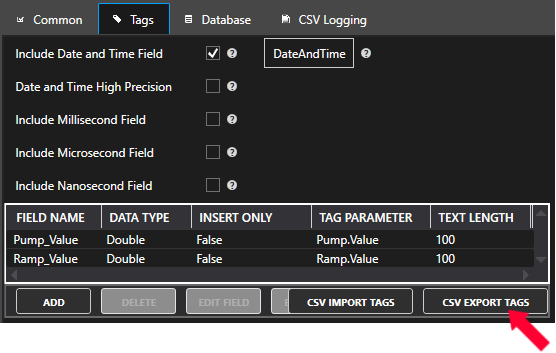
If you wish to export just the individual field names and not the Group information, select the Tags tab and click the CSV Export button below the tag list.

CSV Export Tags
You can then use Microsoft Excel or other CSV compatible application to add or modify data logging properties and fields. Use the Import CSV (see below) feature to then import the modified CSV files.

Note: You cannot have Excel open with the CSV file during the import as Excel will lock the file for exclusive use.  First close the file in Excel, and then proceed with the import.

Import CSV Data Logging

Select the OAS Service that you desire to import a CSV file to the Data Logging configuration and select Import CSV to import a Comma Separated Variable file.

If the same directory that has the base CSV file for all groups also contains the individual CSV files with the base name underscore group name then the fields will also be imported from each individual file matching the group names.

CSV Inport

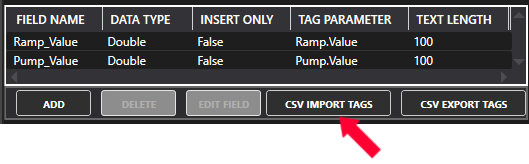
If you wish to just import a data logging groups individual field list, select the Tags tab and click the CSV Import button below the tag list.

CSV Import Tags

Use the Export CSV (see above) feature to generate the CSV files.

Save and Load Data Logging

Save Data Logging

If modifications are made to the current Data Logging configuration for the Service, make sure to save the changes if you want the changes to be retentive when the Service restarts. Use Configure – Options to specify the default Data Logging configuration.

Load Data Logging

Use this selection to load a previously stored Data Logging configuration. Use Configure – Options to set the default Data Logging configuration to load when the Service first starts.

Logging Group CSV Logging Properties

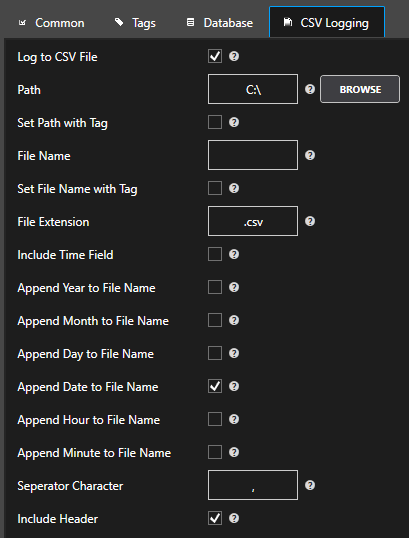
CSV Logging Properties

Log To CSV File

Enable Logging to a Comma Separated File. Logging Active must also be set to True.

Path

The directory path to log the CSV files to.  Make sure to include a backslash at the end of the Path.

Set Path with Tag

When enabled the Path (see above) can be dynamically set with a Tag Parameter value.

File Name

The base name of the CSV files to create and log to. You can also specify to append Date, Hour, and Minute (see below) to this base file name. If the file already exists data will be appended. If the file does not exist it will be created.

CSV File Extension

The extension to append to the end of the file name. Csv is the common extension name that Excel recognizes, but any extension can be used.

Set File Name with Tag

When enabled the base file name (see above) of the CSV file can be dynamically set with a Tag Parameter value. If the file already exists data will be appended. If the file does not exist it will be created.

Append Year to File Name

Append the year to the base file name in the form of YYYY to the end of the file name. If the file already exists data will be appended. If the file does not exist it will be created.

Append Month to File Name

Append the year to the base file name in the form of MM to the end of the file name. If the file already exists data will be appended. If the file does not exist it will be created.

Append Day to File Name

Append the year to the base file name in the form of DD to the end of the file name. If the file already exists data will be appended. If the file does not exist it will be created.

Append Date to File Name

Append the date to the base file name in the form of YYYYMMDD to the end of the file name. If the file already exists data will be appended. If the file does not exist it will be created.

Append Hour to File Name

Append the hour to the base file name in the form of HH to the end of the file name. If the file already exists data will be appended. If the file does not exist it will be created.

Append Minute to File Name

Append the minute to the base file name in the form of MM to the end of the file name. If the file already exists data will be appended. If the file does not exist it will be created.

Separator Character

The separator character to use. Most commonly it is a comma that is used for Comma Separated Variable files.

Logging Group Database Properties

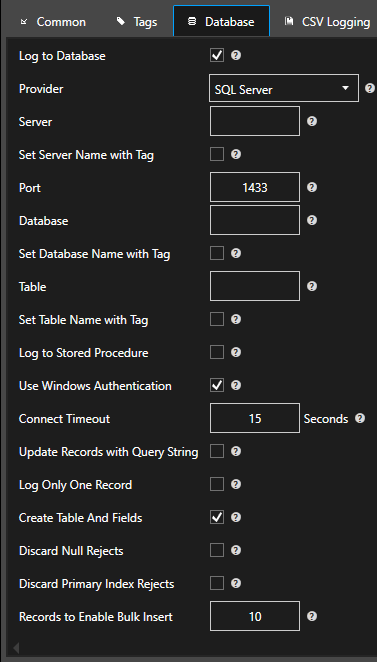
Logging Group Database Properties

Log To Database

Enable Logging to a database table. Logging Active must also be set to True.

Provider

Database provider to use:

  • SQLServerDesktop_MSDE: Use SQL Server Desktop or MSDE database engine.
  • SQLServer: Use SQL Server or SQL Server Express.
  • MSAccess: Use Microsoft Access Jet Database engine.
  • Oracle: Use Oracle engine. Does not automatically create database. You must create the database schema first to use this provider.
  • mySQL: Use mySQL database engine.
  • ODBC: Use ODBC data source. Does not automatically create database, table, or field names. You must create database, table, and all fields with the proper names and data types first to use this provider.
  • MongoDB: Use MondgoDB NoSQL engine.

Server

The name of the Server to use when the Provider (see above) is set to SQL Server Desktop, SQL Server, or mySQL.

Set Server Name with Tag

When enabled the server (see above) name can be dynamically set with a Tag Parameter value when the Provider is set to SQL Server Desktop, SQL Server, or mySQL.

Database

The name of the Database to log to. When using Microsoft Access specify the full path of the database. Example: C:DatabaseName.mdb.

Set Database Name with Tag

When enabled the database name can be dynamically set with a Tag Parameter value.

Table

The name of the database Table to log to.

Set Table Name with Tag

When enabled the table  (see above) name can be dynamically set with a Tag Parameter value.

Log To Stored Procedure

Log values to stored procedure instead of a table.

Stored procedure must already exist.

Table name property will change to Stored Procedure name.

Database field names will be the stored procedure parameter names.

Use WinNT Authentication

Use Windows Logon Security Authentication when the provider is set to SQL Server Desktop or SQL Server.

User Name

User Name for database security.

Password

Password for database security.

Update Records with Query String

This will enable an update to the table instead of an insert. The records that match the Query String will all be updated. If no records are found to match the Query String then the record can be inserted if the option Insert if Records Do Not Exist from Query String (see below) is enabled.

Data Logging Query String

The query string to use to find matching records to update when the option Update Records with Query String is enabled.

Set Query String with Tag

When enabled the Query String (see above) will be dynamically set based on the value form a String Tag.

Insert if Records Do Not Exist from Query String

If the option Update Records with Query String is selected and the Query String value does not result in any matching records a new record will be added to the table if this option is selected.

Log Only One Record

When enabled and the Logging Type  is set to Continuous, Even Driven, Specific Time of Day, or Data Change Row all of the records in the table will be deleted except the latest one in the table.

When enabled and the Logging Type  is set to Data Change the existing records that have the matching tag alias name will be updated. If there are no matching records that exist then a new record will be added.

Automatically Create Table And Fields

If the table does not exist it will automatically be created with the fields defined under the Tags properties

If the table does exist each field will be verified to match data type and field name. Fields that do not exist in the table will be created. Fields that do exist and their data type does not match the data type defined will be converted to the defined data type.

When this option is disabled no attempt will be made to create the table or fields and the table must already exist with the correct field names and types.

Do Not Buffer When Nulls Are Not Allowed In Database

When this option is selected and one or more of the fields has been changed to not allow nulls and the data quality of the value is bad an error will occur in the logging that nulls are not allow. With this option selected the record will be ignored and will not be buffered for the field to be corrected, the record will be lost.

Do Not Buffer On Primary Index Failure

When this option is selected and an error indicating that the PRIMARY INDEX violation has occurred data will not be buffered to RAM or disk. With this option selected the record will be ignored and will not be buffered and the record will be lost.

Number of Records to Enable Multiple Write

The number of records to be logged that will cause the logging to use an optimized logging of multiple records in one call when using the SQL Server provider.

Try Single Write After Multiple Write Fail

When using SQL Server and the number of records to be logged exceed Number of Records to Enable Multiple Write (see above) and the optimized write fails try an individual stored procedure write.

Multiple Write With TableLock

When using SQL Server and the number of records to be logged exceed Number of Records to Enable Multiple Write the optimized write will be called with a TableLock.

Use Get App Lock

When using SQL Server and the number of records to be logged exceed Number of Records to Enable Multiple Write only one call at a time will be able to processed for all logging groups that have Use Get App Lock enabled. This will disable parallel processing to the database to only execute one data logging group to the database at a time when using SQL Server.  Does not apply to Oracle, Access, and mySQL.

Fire Events on Multiple Write

When using SQL Server and the number of records to be logged exceed Number of Records to Enable Multiple Write the optimized write will fire an event on each execution.

Number of Records to Write on Multiple Write

When using SQL Server and the number of records to be logged exceed Number of Records to Enable Multiple Write the optimized write will include this number of records in each batch write. This is a way to break up the network packet size to remote SQL Server nodes with large amounts of data to record. A value of 0 will write all records in one batch.

Logging Group Tags Properties

Logging Group Tags Properties

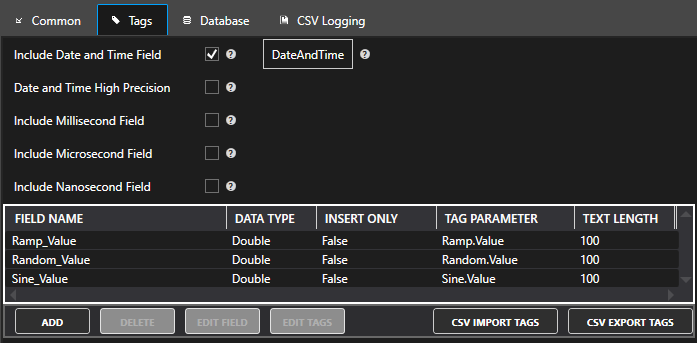
Include Date and Time Field

When enabled the Data and Time Field will be included as a column in the logging group.

Date Time Field Name

The field name to be created in the database table or CSV file header of the date and time stamp.

Note: Do not use a field name of DateTime or Date. These names are data types and have special meaning for SQL commands.

Note: To specify non-standard characters and spaces put [ in front of the field name and ] at the end of the file name.  Example: [my.field-name value].

Millisecond Field Name

The field name to be created in the database table or CSV file header of the millisecond field. Enable this field to maintain resolution faster than 3 milliseconds with SQL Server, 10 milliseconds with Oracle, or 1 second with CSV files.

Note: To specify non-standard characters and spaces put [ in front of the field name and ] at the end of the file name. Example: [my.field-name value].

Microsecond Field Name

The field name to be created in the database table or CSV file header of the microsecond field. Enable this field to maintain resolution faster than 1 millisecond.

Note: To specify non-standard characters and spaces put [ in front of the field name and ] at the end of the file name. Example: [my.field-name value].

Nanosecond Field Name

The field name to be created in the database table or CSV file header of the microsecond field.  Enable this field to maintain resolution faster than 1 microsecond.

Note: To specify non-standard characters and spaces put [ in front of the field name and ] at the end of the file name. Example: [my.field-name value].

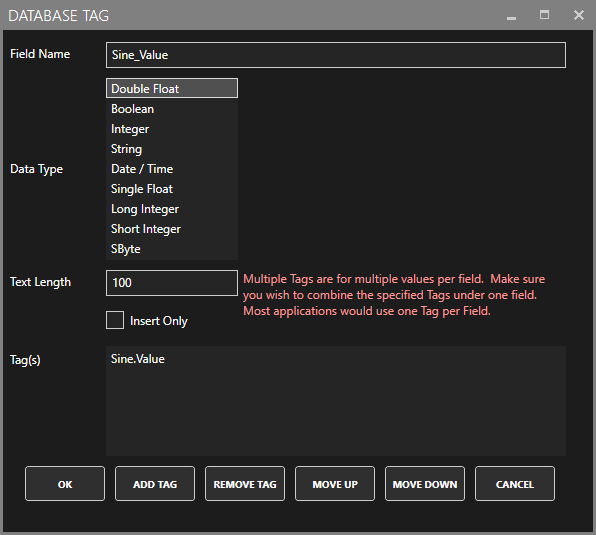
Data Logging Field Field Name

For each tag value that is logged with the wide table format each point will have a corresponding field name. Specify a field name up to 64 characters in length; do not use special characters or spaces that will be incompatible with other third party reporting systems.

Do not use the names DateTime or Date as these have special meaning for many database queries.

Note: To specify non-standard characters and spaces put [ in front of the field name and ] at the end of the file name. Example: [my.field-name value].

Data Logging Field Data Type

This is the data type in the database for the field.

Data Logging Field Text Length

This is the number of characters to allocate for the field when the Data Type is set to String.

Data Logging Field Insert Only

When the property to Update Records with Query String is selected this property will control if the value will be included in the update or will be only included when an insert is performed.

Data Logging Field Tags

Normally for the wide table format there is only one tag per field. The common parameter would be Tag Name.Value, but all tag parameters can be logged. It is possible to define multiple tags per field, but this is very rare and you should consider the Data Change narrow table format if you need to limit the number of fields in the table.

Data Logging Data Change Tag Field Name

With the Logging Type set to Data Change this is the field name for the tag name alias.

Note: To specify non-standard characters and spaces put [ in front of the field name and ] at the end of the file name. Example: [my.field-name value].

Data Logging Data Change Value Field Name

With the Logging Type set to Data Change this is the field name for the value that is logged. Do not use the name Value as this has special meaning for many database queries.

Note: Do not use a field name of Value. This name has special meaning for SQL commands and should not be used as a field name.

Note: To specify non-standard characters and spaces put [ in front of the field name and ] at the end of the file name. Example: [my.field-name value].

Data Logging Data Change Value Field Data Type

With the Logging Type set to Data Change this is the data type for the value field.

Data Logging Data Change Value Text Length

With the Logging Type set to Data Change this is the length of the value field when the data type for the value field is set to String.

Data Logging Data Change Tag Alias to Log

The string that is logged for each value when the Logging Type is set to Data Change.

Add Field

Add a data field and specify the Tag Parameter, field name, and field data type. Use the Add Field Button.

Add Delete Edit

Database Tag

Delete Field

Delete field(s) by selecting the field(s) and select the Delete button.

Edit Field

Edit a data field to specify the field name and field data type. Use the Edit Field Button..

Field CSV Import/Export

Use the CSV Import Tags Button to export one or more Tags in the list, or CSV Import Button to add/modify fields in the existing list.

CSV Import Tags CSV Export Tags